


Users and roles
What you'll learn
- How to invite someone
- How to assign their teams and role
- How to disable or protect an account
- What each role can do
Only the Administrator creates and changes users; each person edits only their own profile.
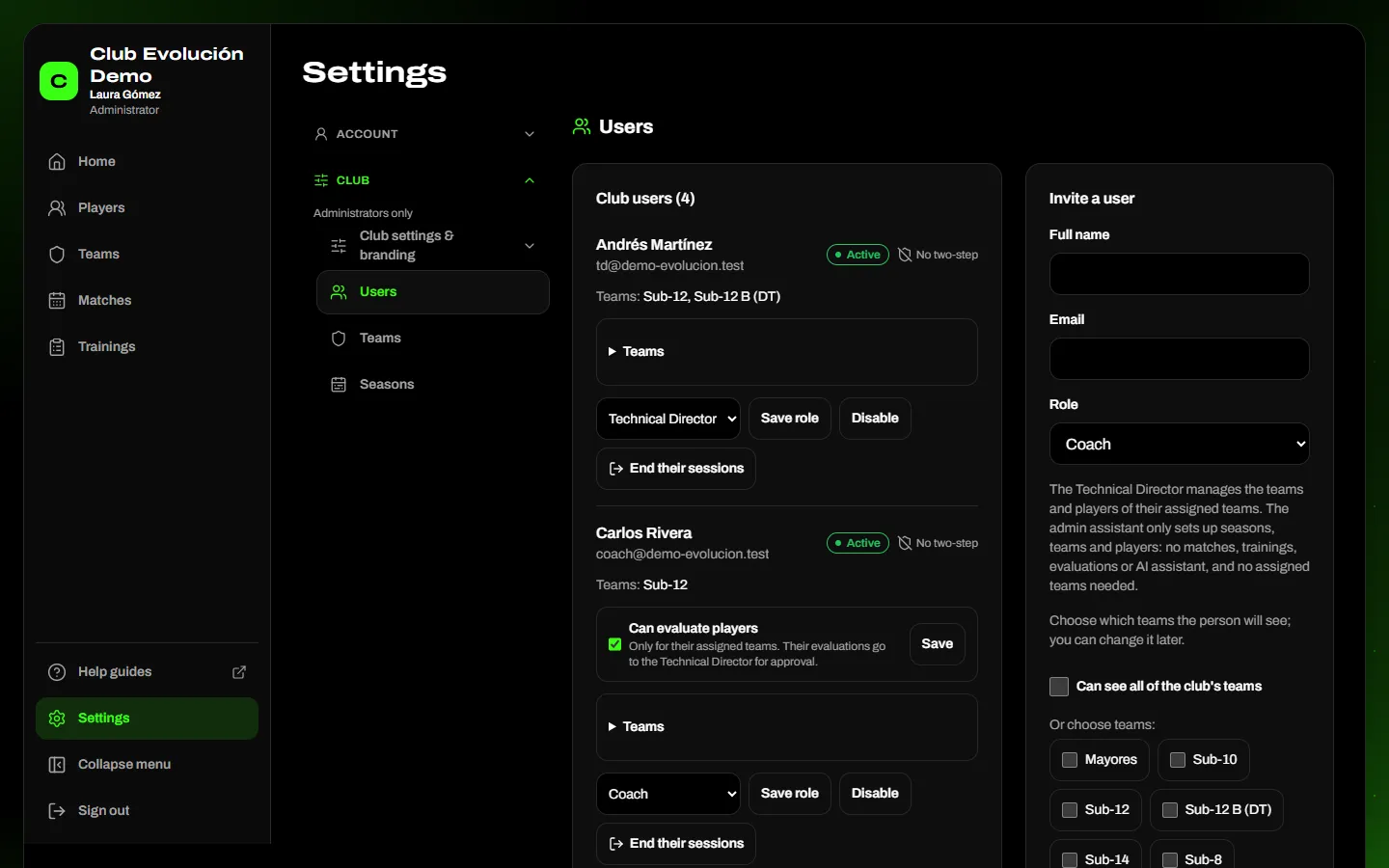
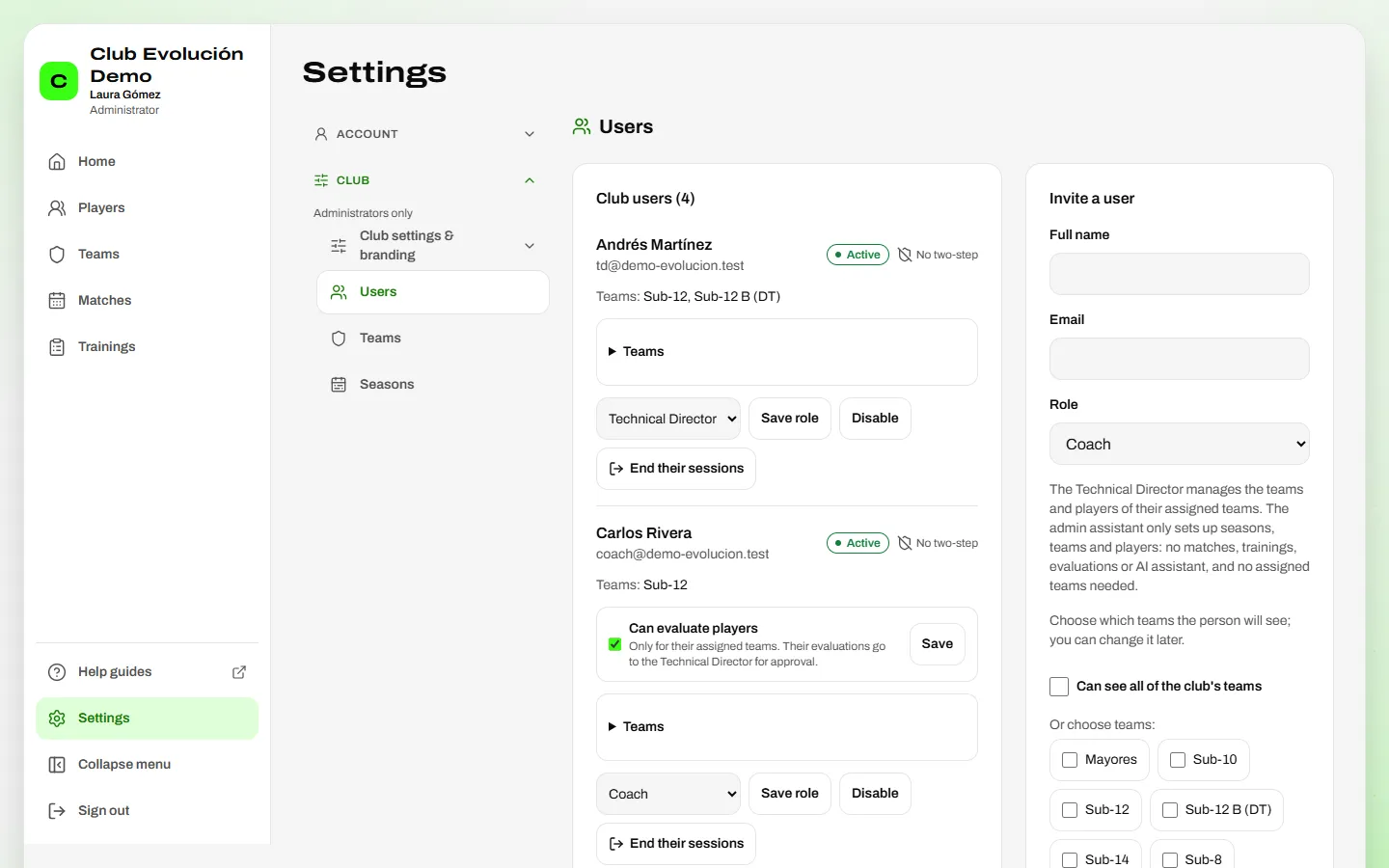
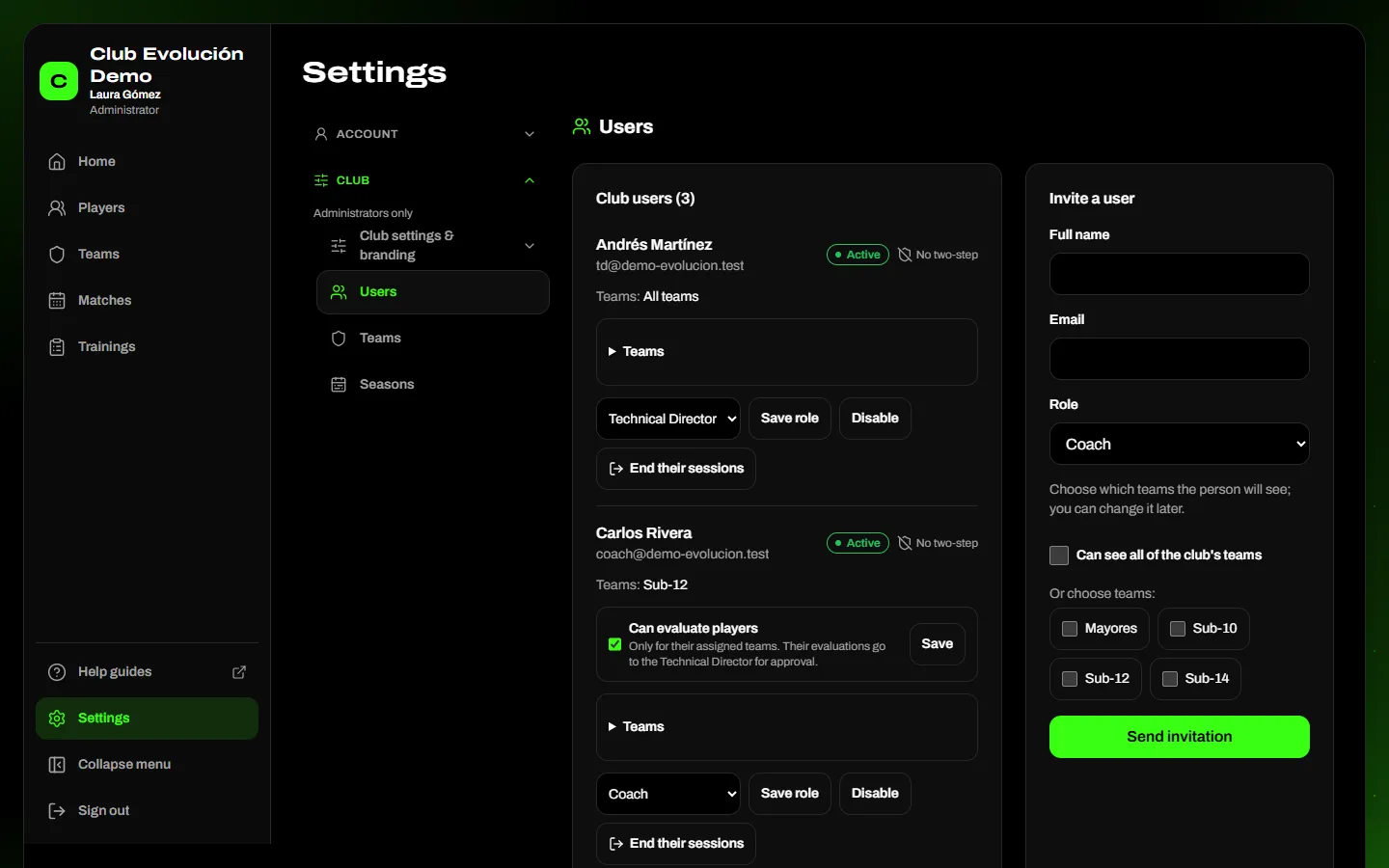
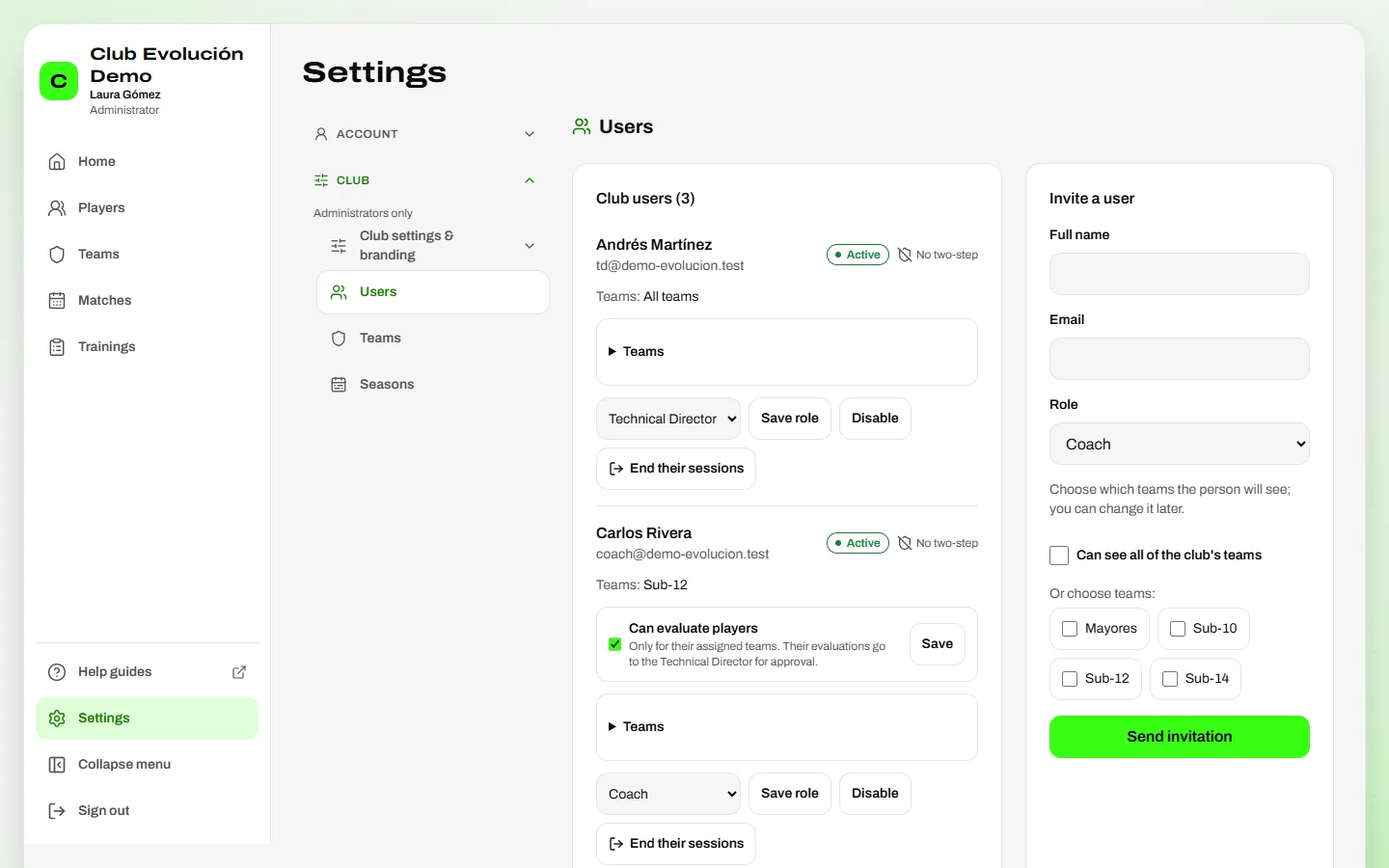
- Go to Settings → Club → Users.
- Enter the name, email and role.
- Tick Can see all of the club's teams or choose their teams.
- Tap Send invitation.
Important
If you invite a coach, technical director or technical staff member with no teams, the platform warns you: that person will not see players or matches until you assign teams in their row (Teams → Save teams).
On each person's row you can change their role (Save role), their teams, Disable their access, Reset two-step if they lost their authenticator app, or End their sessions on all their devices. Until someone accepts, their row shows Resend invitation: the link lasts one hour, and each resend cancels the previous one.
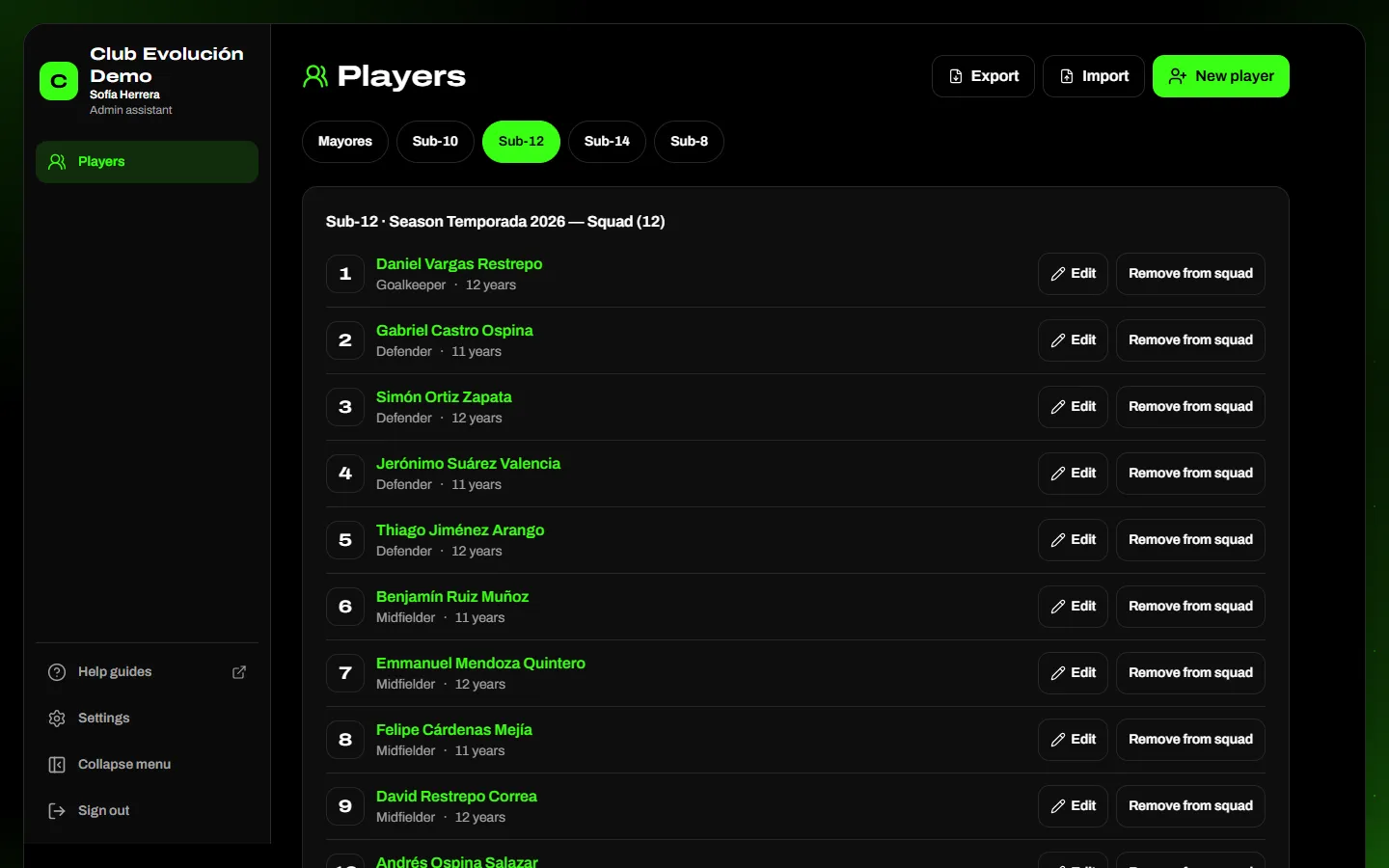
Admin assistant. Choose this role for someone who only helps set up the club (seasons, teams and players). They need no assigned teams and see no sports data or AI assistant. They start on Players.

| Permission | Administrator | Admin assistant | Technical Director | Coach | Technical staff |
|---|---|---|---|---|---|
| Seasons: create, edit and choose the active one | ✅ | ✅ | — | — | — |
| Teams: create and edit | ✅ | ✅ all | ✅ their teams | — | — |
| Teams: archive or delete | ✅ | — | — | — | — |
| Players: create, edit and place in the squad | ✅ | ✅ all | ✅ their teams | — | — |
| Players: change the status (archive) and delete entries | ✅ | — | — | — | — |
| Export and import players (Excel or CSV) | ✅ | ✅ all | ✅ their teams | — | — |
| Matches and trainings: record | ✅ | — | ✅ their teams | ✅ their teams | — |
| Player measurements | ✅ | — | ✅ | ✅ their teams | — |
| Evaluate | ✅ | — | ✅ their teams | If the Administrator allows it (sent for review) | — |
| Approve or return coaches' evaluations | ✅ | — | ✅ their teams | — | — |
| View dashboards, profiles and evaluations | ✅ | — | ✅ their teams | ✅ their teams | ✅ their teams |
| Users, roles and club settings | ✅ | — | — | — | — |
| AI assistant (when available) | ✅ | Never | If the Administrator grants it | If the Administrator grants it | If the Administrator grants it |
"Their teams" are the teams assigned to the person (or all of them, with Can see all of the club's teams). The admin assistant is a configuration-only role: no Home, dashboards, matches, trainings, evaluations or AI assistant, even if teams are assigned.
Coaches who can evaluate. On a coach's row, tick Can evaluate players and tap Save. That coach evaluates only their assigned teams, and every evaluation they send is reviewed by the Technical Director (or the Administrator) before it counts. If you leave it unticked, the coach reads evaluations but does not evaluate.
Tip
Nobody can change their own role or teams — not even the Administrator.
Recap
- Invite from Settings → Club → Users
- Assign teams: with no teams, nothing is visible
- From the row: role, teams, disable, reset two-step, end sessions
- Coaches: tick "Can evaluate players" on their row
- Admin assistant: configuration only, no teams or sports data
To unmark the lesson, select the button again.
Questions? Visit our support portal: support.proevolutionlab.com (opens in a new tab)