


Import players from Excel or CSV
What you'll learn
- When to use the import and who can do it
- How to prepare the file from the template
- How to check the file and fix errors before saving
- Which profile data the file can carry
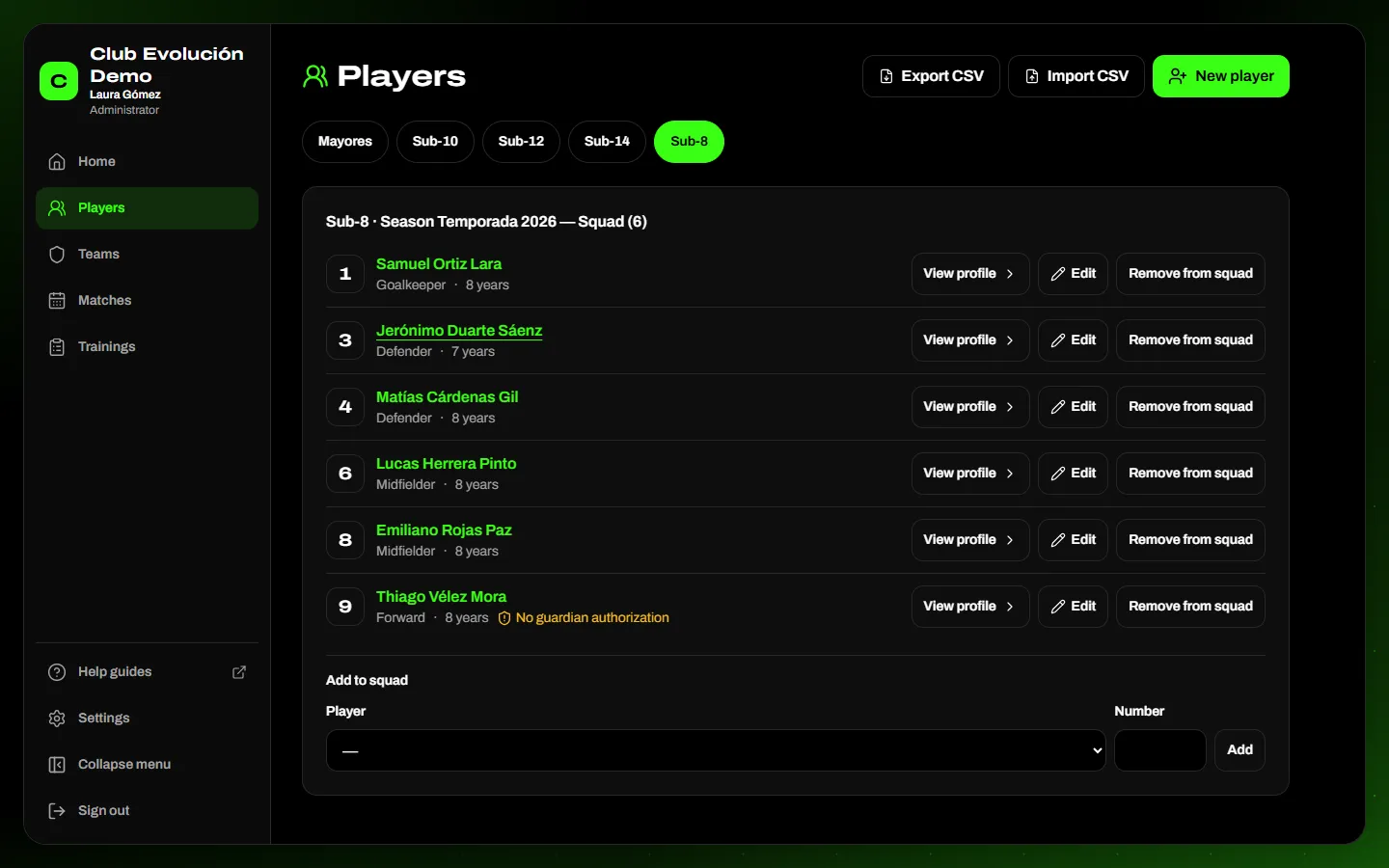
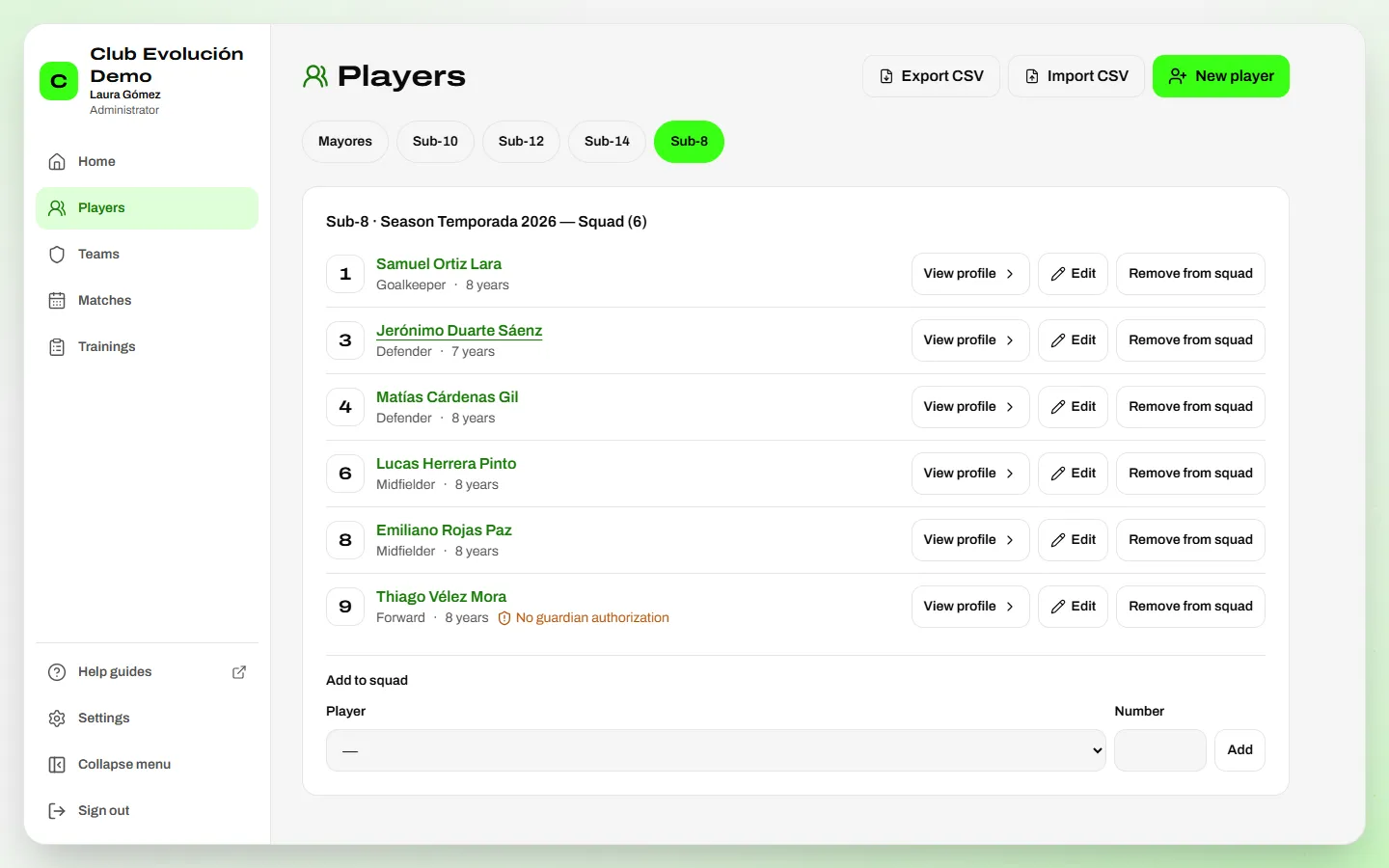
To load many players at once. The Administrator and the admin assistant (every team) and the Technical Director (their teams) see the Export and Import buttons in Players. Create the seasons and teams first; then load each team's players from an Excel (.xlsx) or CSV file.
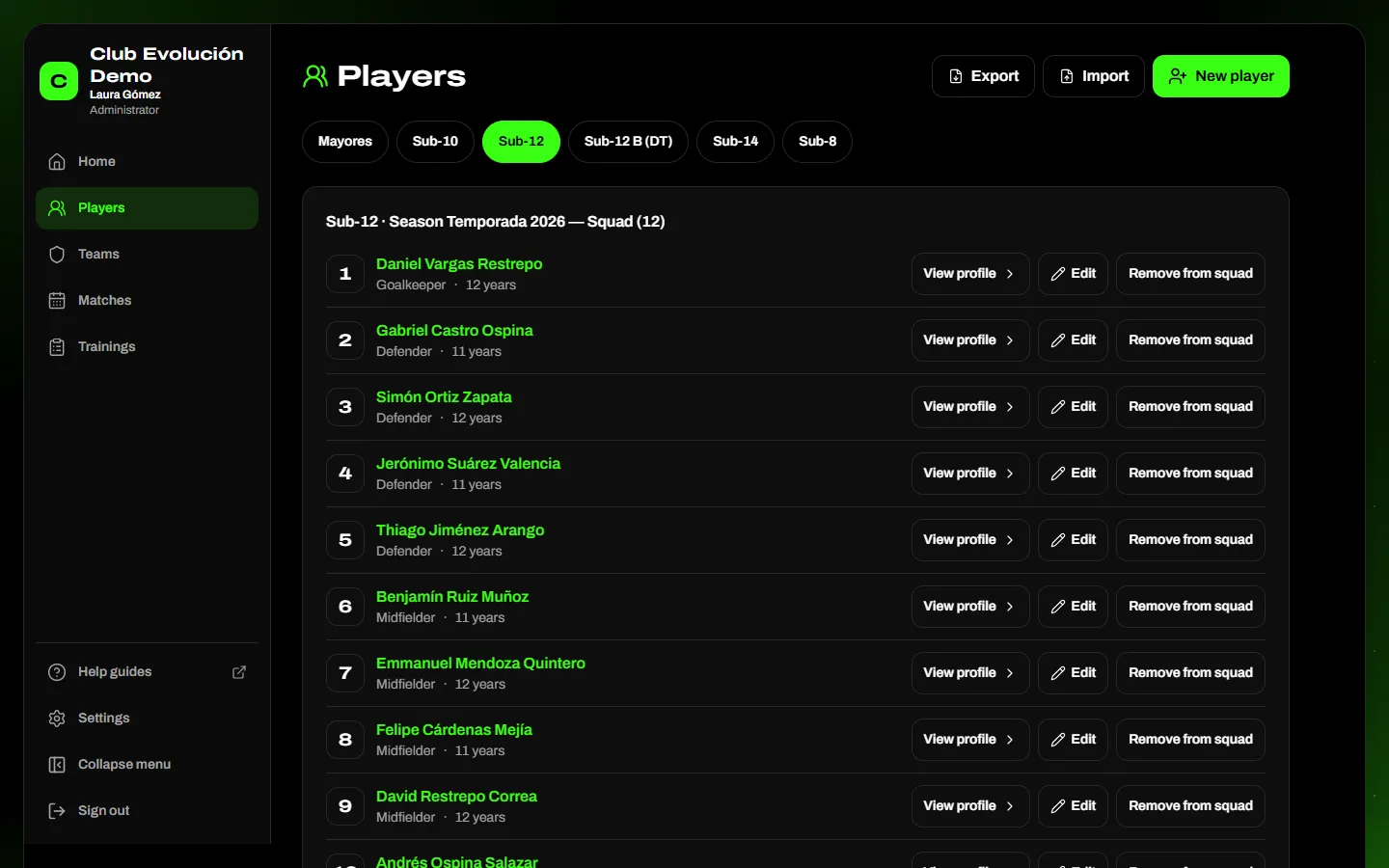
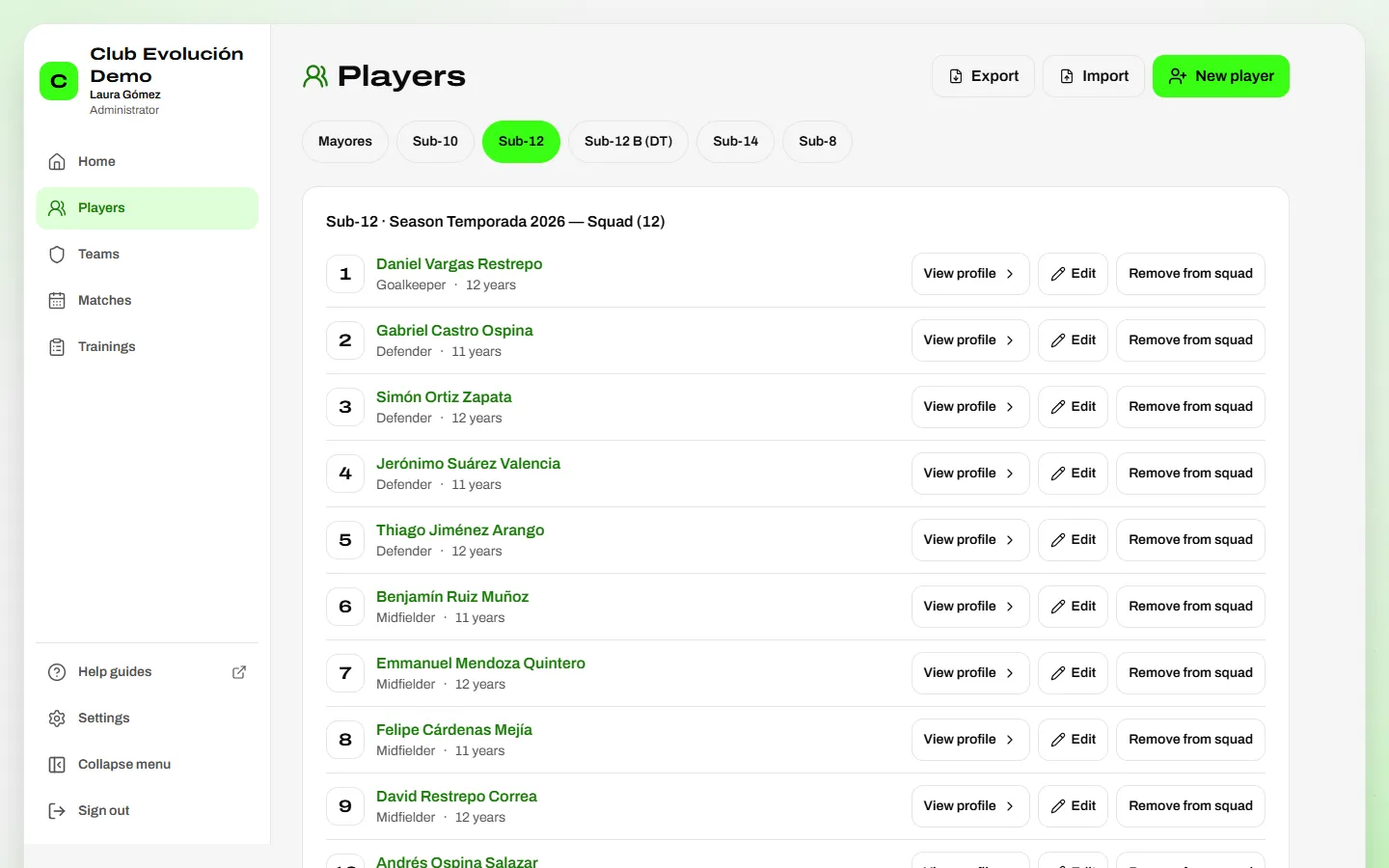
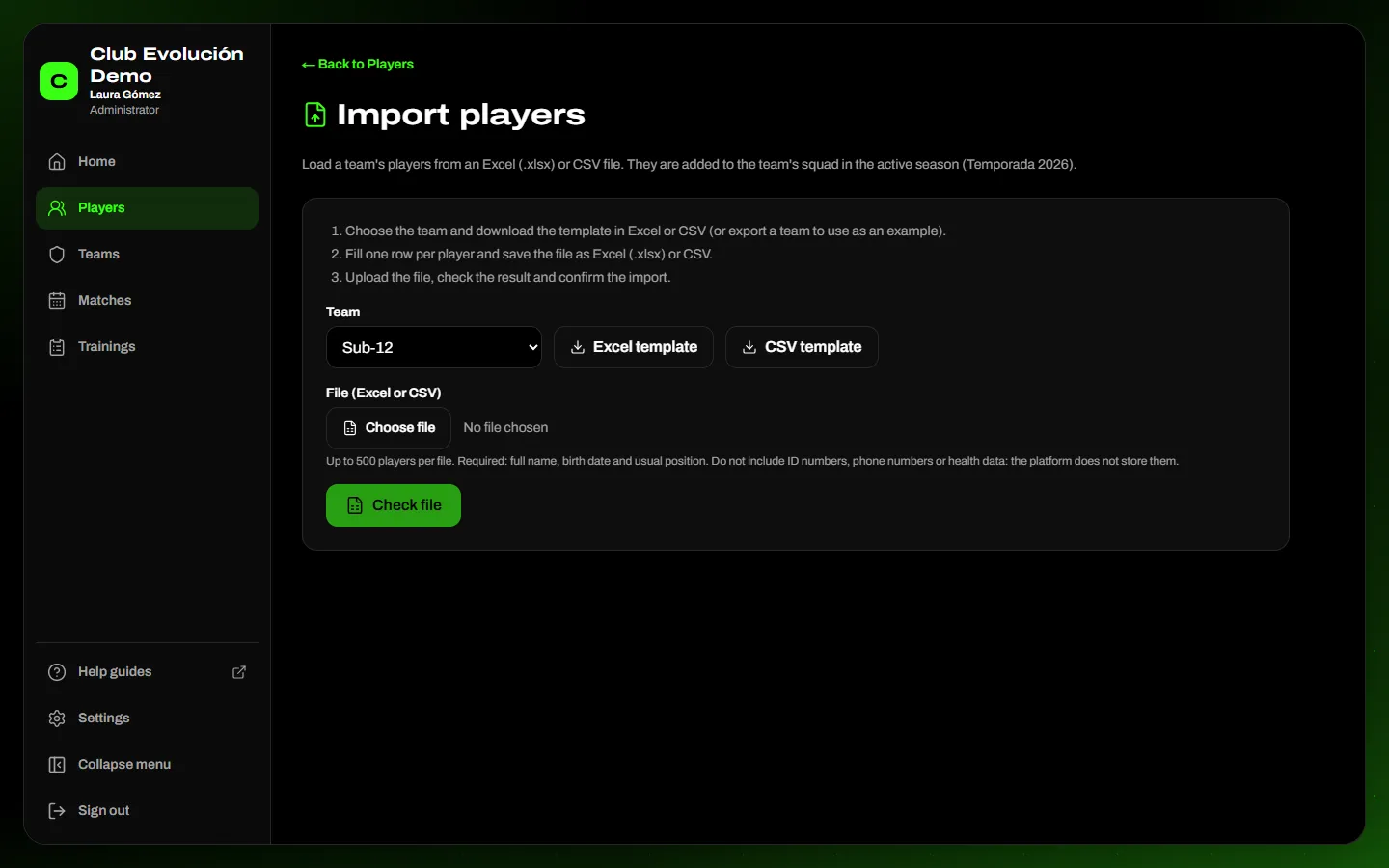
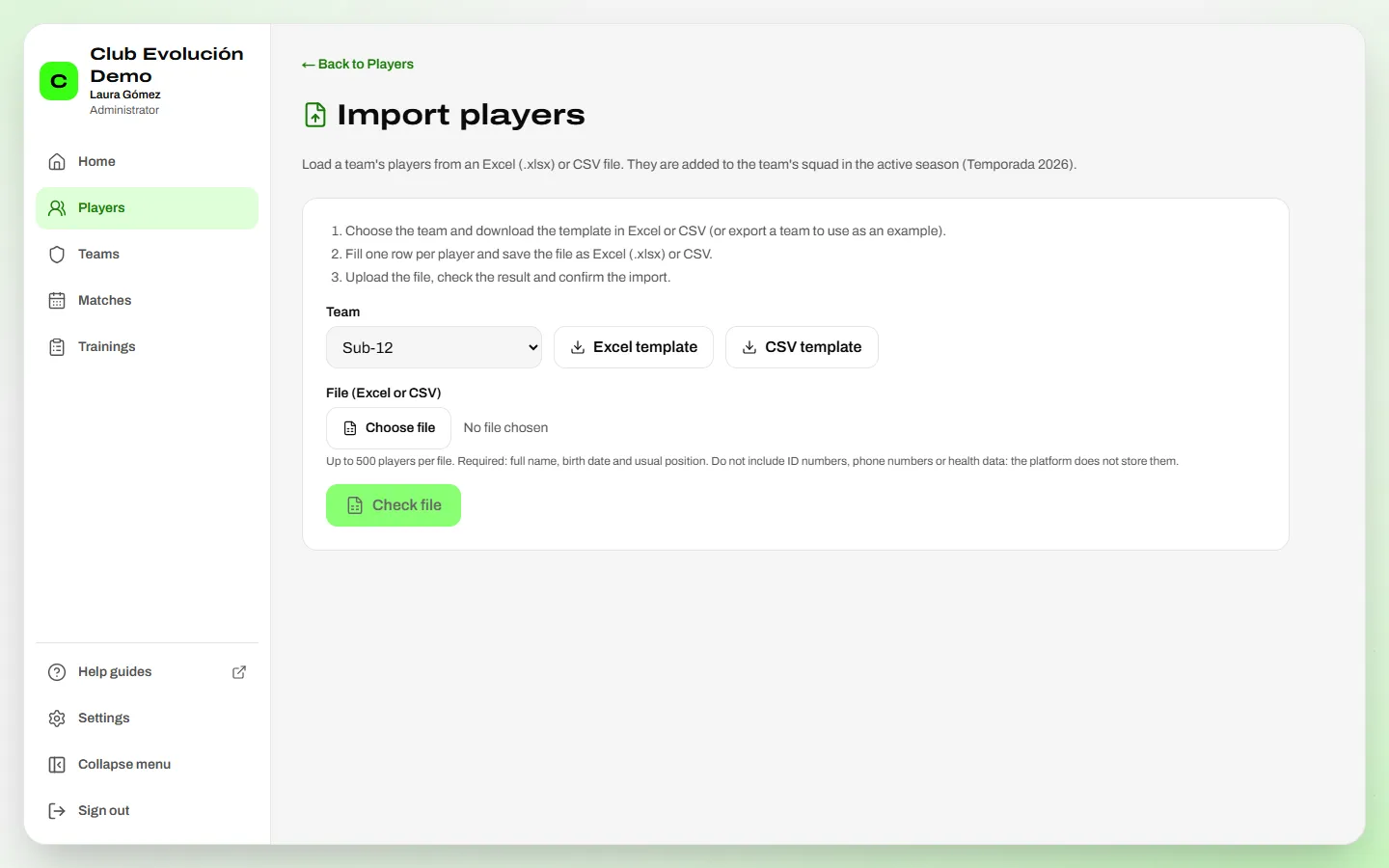
- Tap Import, choose the Team and tap Excel template or CSV template (or export another team as an example).
- Fill in one row per player. Required: Full name, Birth date (DD/MM/YYYY, or an Excel date) and Usual position (Goalkeeper, Defender, Midfielder or Forward). Save the file as Excel (.xlsx) or CSV.
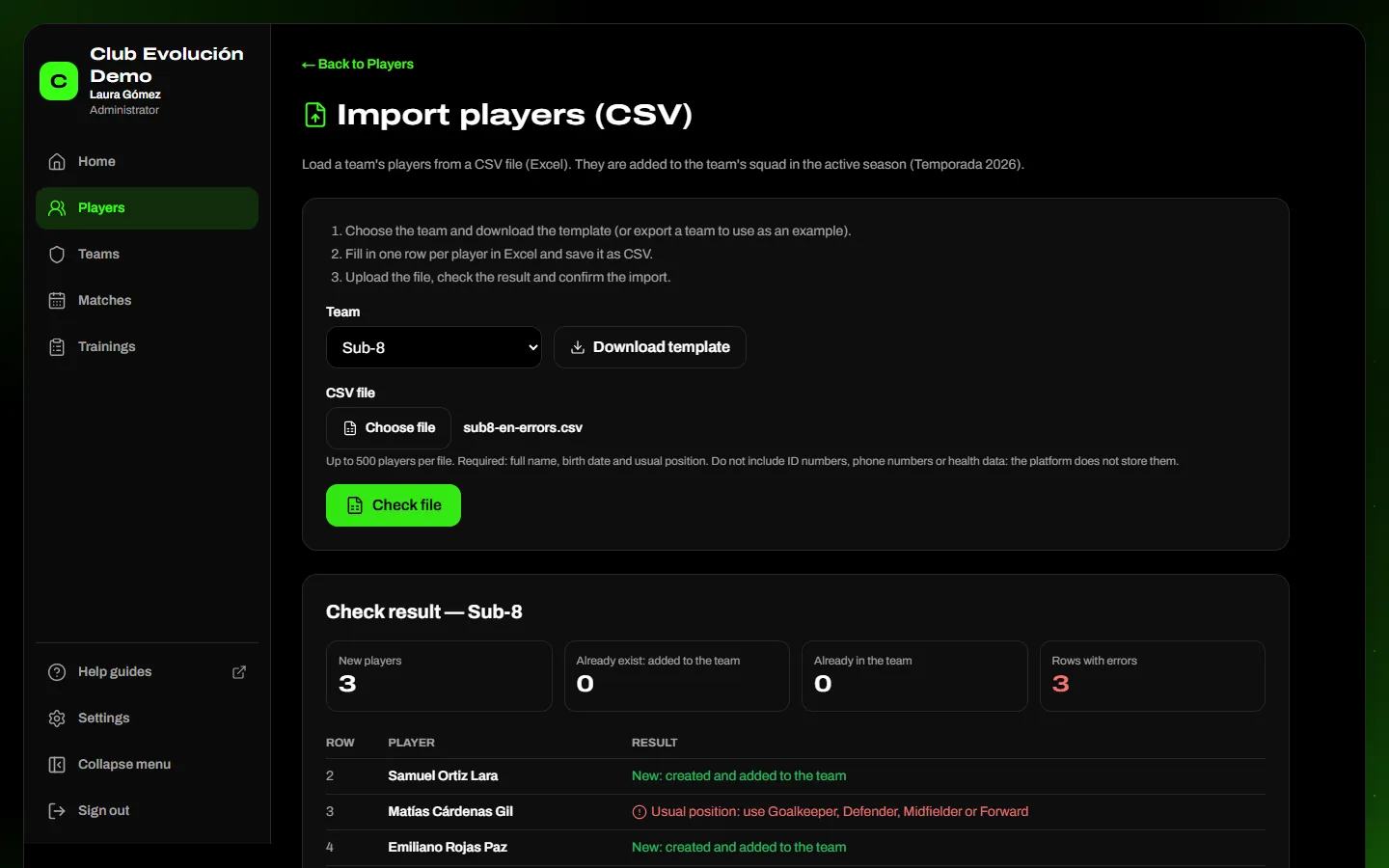
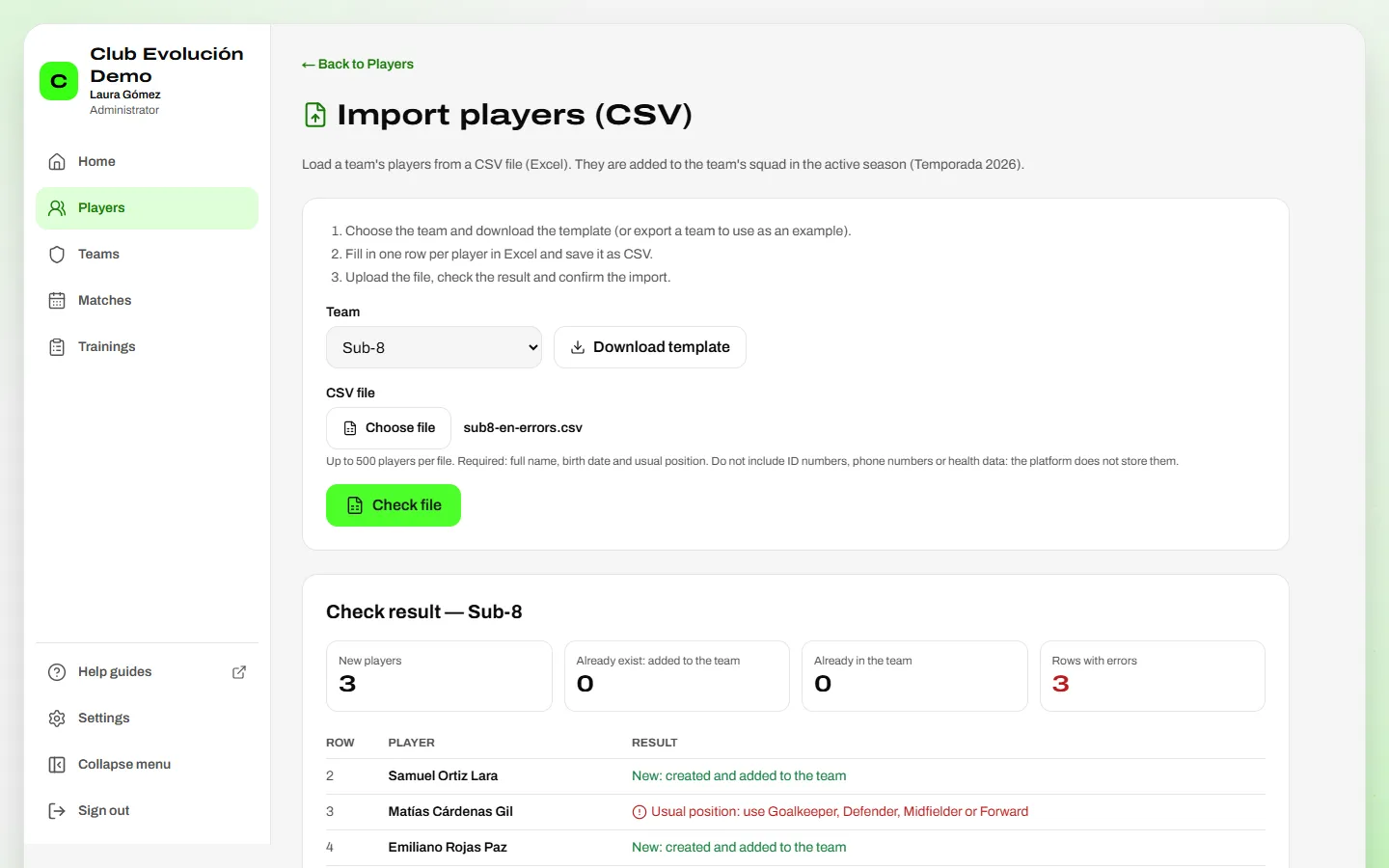
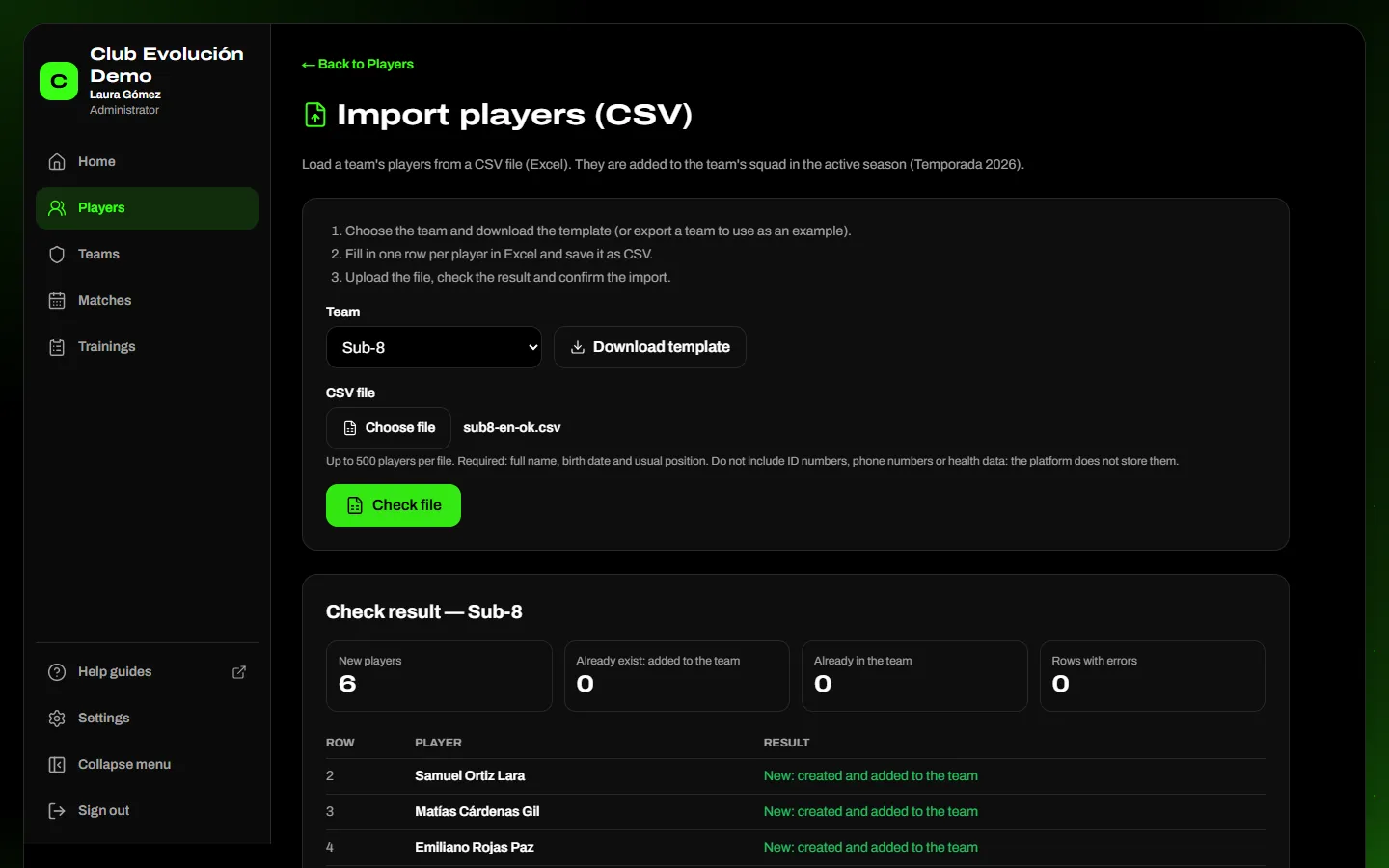
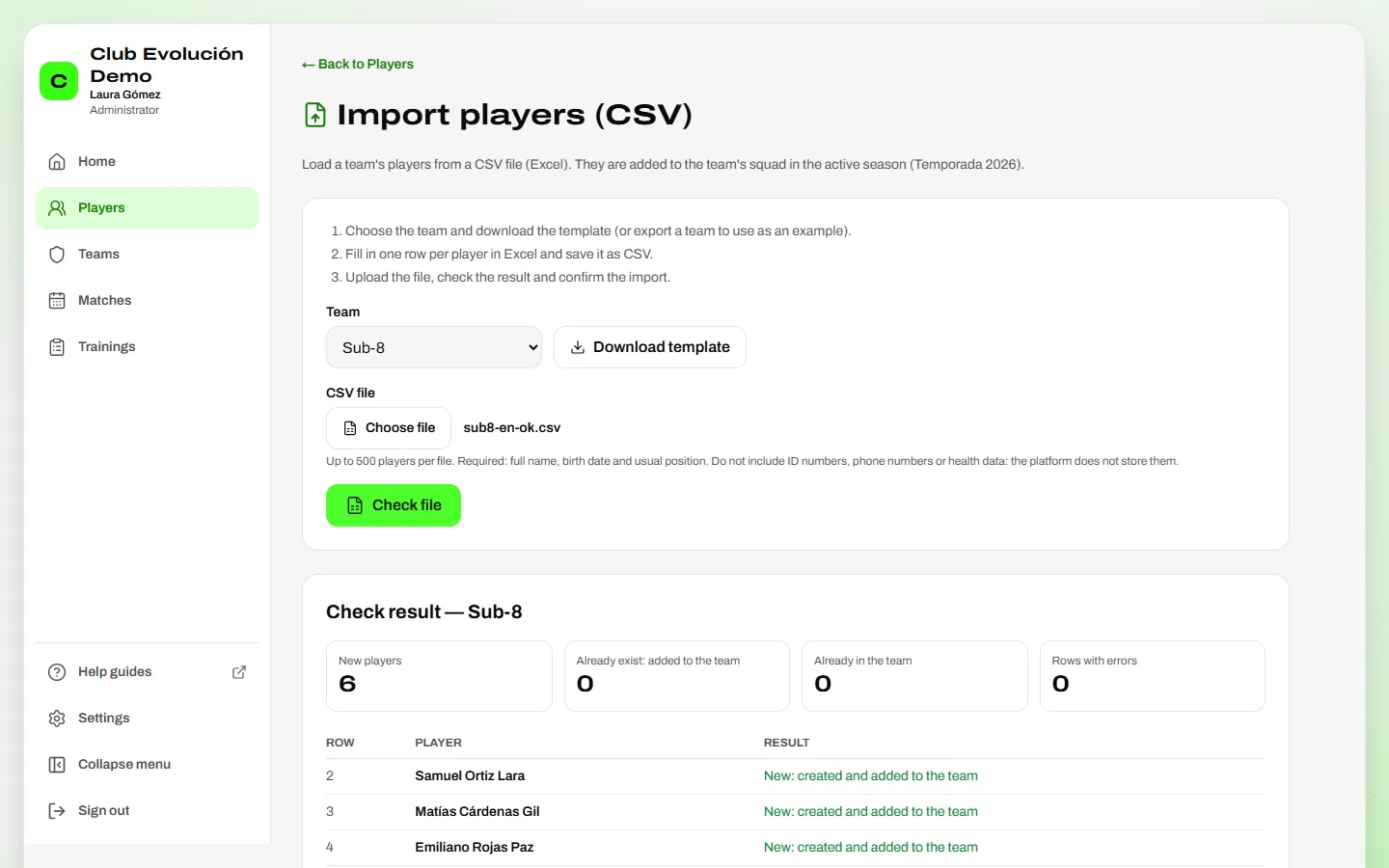
- Tap Choose file, select it and tap Check file: nothing is saved yet.
- Check the result row by row: New, Already in the club (added to the team without duplicating it), Already in the team, or the reason it cannot be imported. If there are errors, fix them in the file and check it again.
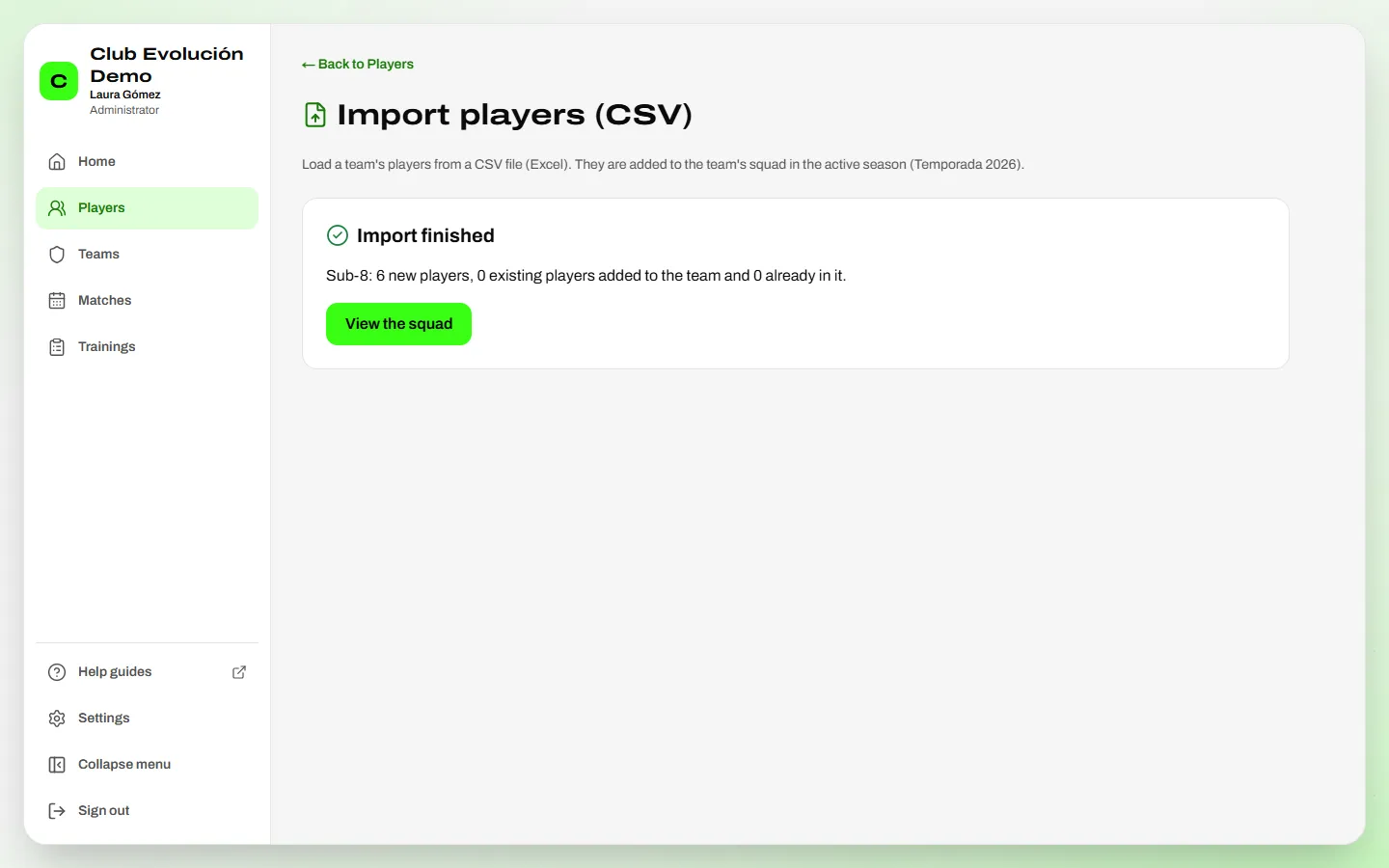
- Tap Import N players. Either all of them are saved or none.

Depending on your role
A Technical Director only adds players they already see (their teams' players or players in no team); if the player is in someone else's team, the check says so.
Important
The file can carry the full profile: secondary positions, jersey number, dominant foot, nationality (2-letter code, e.g. CO), English level, date joined, projection group, trajectory, Authorization confirmed (Yes/No), and height and weight (saved as their first measurement). Never include ID numbers, phone numbers or health data: the platform does not store them and unknown columns are ignored.
Tip
Up to 500 players per file. Importing the same file twice duplicates nothing: players already in the team are marked Already in the team.
Recap
- Seasons and teams first; then Import per team
- Excel or CSV template → fill in → save as Excel or CSV
- Check file: nothing is saved until you tap "Import N players"
- All or nothing is saved; importing again never duplicates
To unmark the lesson, select the button again.
Questions? Visit our support portal: support.proevolutionlab.com (opens in a new tab)