


Add players
What you'll learn
- How to create a player
- Which data is kept and which is not
- How to edit their data
- Where to import and export many players (lessons 11.1 and 11.2)
- Go to Players and tap New player.
- Enter the full name, birth date and usual position.
- Tick the authorization box if you have it: for a minor it says The club has the guardian's authorization; for an adult, The club has the player's own authorization (it switches as you type the birth date).
- If you like, complete the profile: other positions, dominant foot, nationality, English level, joining date, projection group and track record.
- Tap Save.
Important
For minors and adults alike, the platform keeps only the minimum data: never ID numbers, phones, emails, addresses or medical data. A player without authorization shows No guardian authorization (minor) or No authorization from the player (adult).
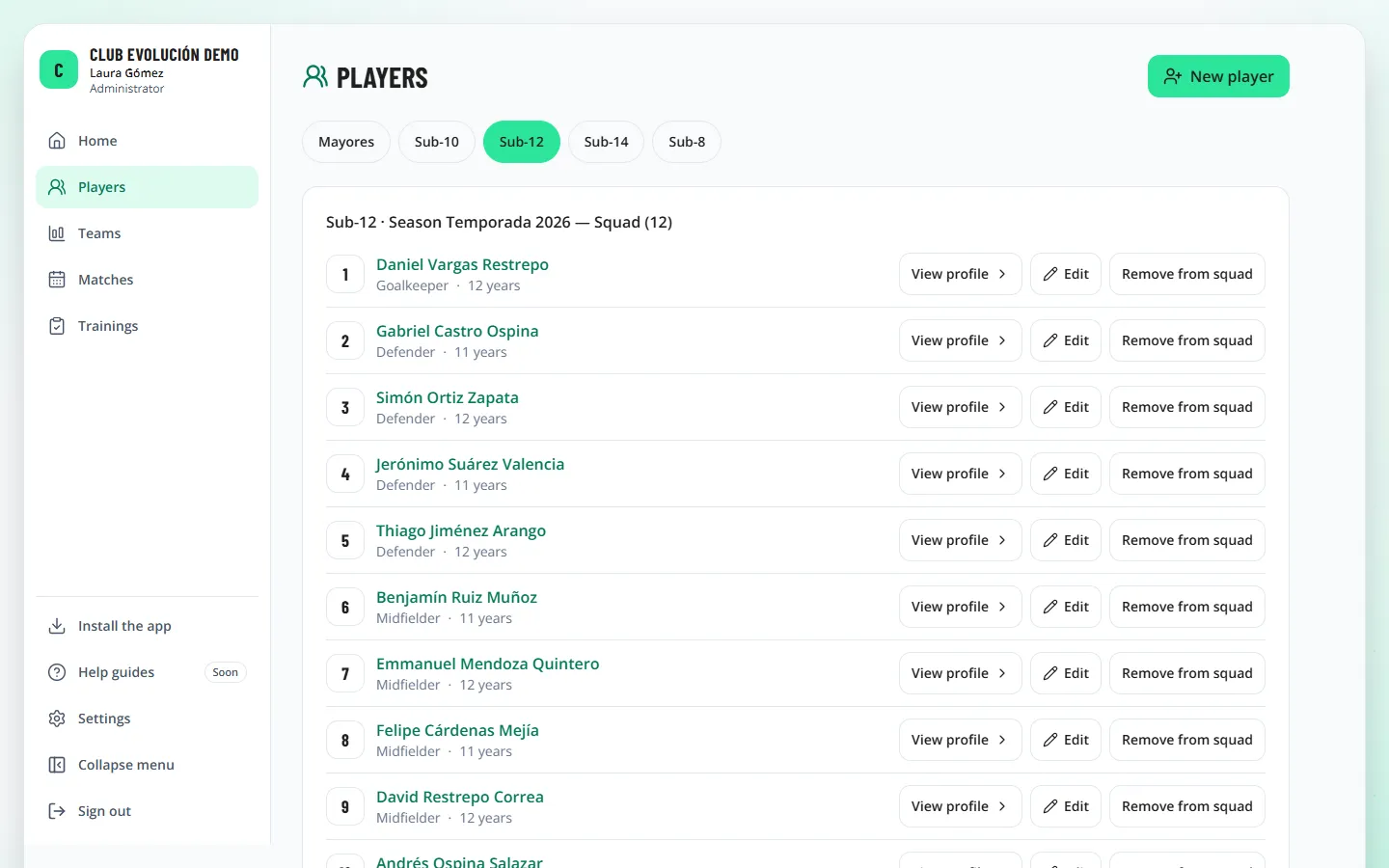
In the Players list, each row has View profile and, for the Administrator, the admin assistant and the Technical Director, Edit. Only the Administrator changes a player's Status (active, inactive, graduated, left).
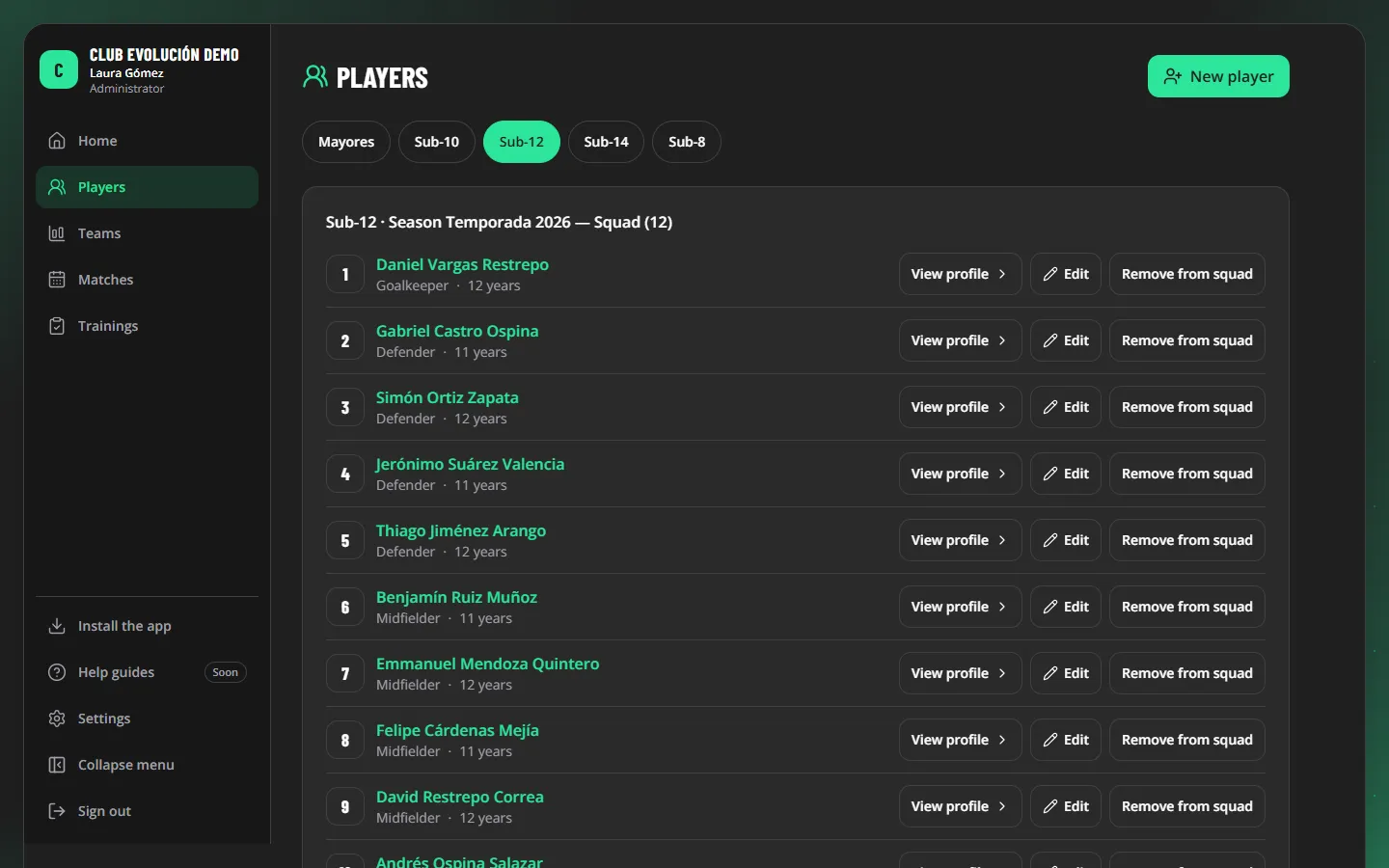
Many players at once: the Administrator, the admin assistant and the Technical Director (their teams) can load them from an Excel or CSV file — lesson 11.1 — and download a team's players — lesson 11.2.
Recap
- Players → New player
- Minimum data only: no IDs, contacts or medical data
- "View profile" and "Edit" on every row
- Many players: Import and Export in Excel or CSV (lessons 11.1 and 11.2)
- Only the Administrator changes a player's status
To unmark the lesson, select the button again.
Questions? Visit our support portal: support.proevolutionlab.com (opens in a new tab)