


Evaluate a player
What you'll learn
- How to fill in the form
- How the draft and the review work
- What happens if someone else already started
- How coaches' evaluations are reviewed
- Open the match and go to Evaluations: each player shows their status (Pending, Draft, In review, To approve, Returned, Evaluated or Did not play).
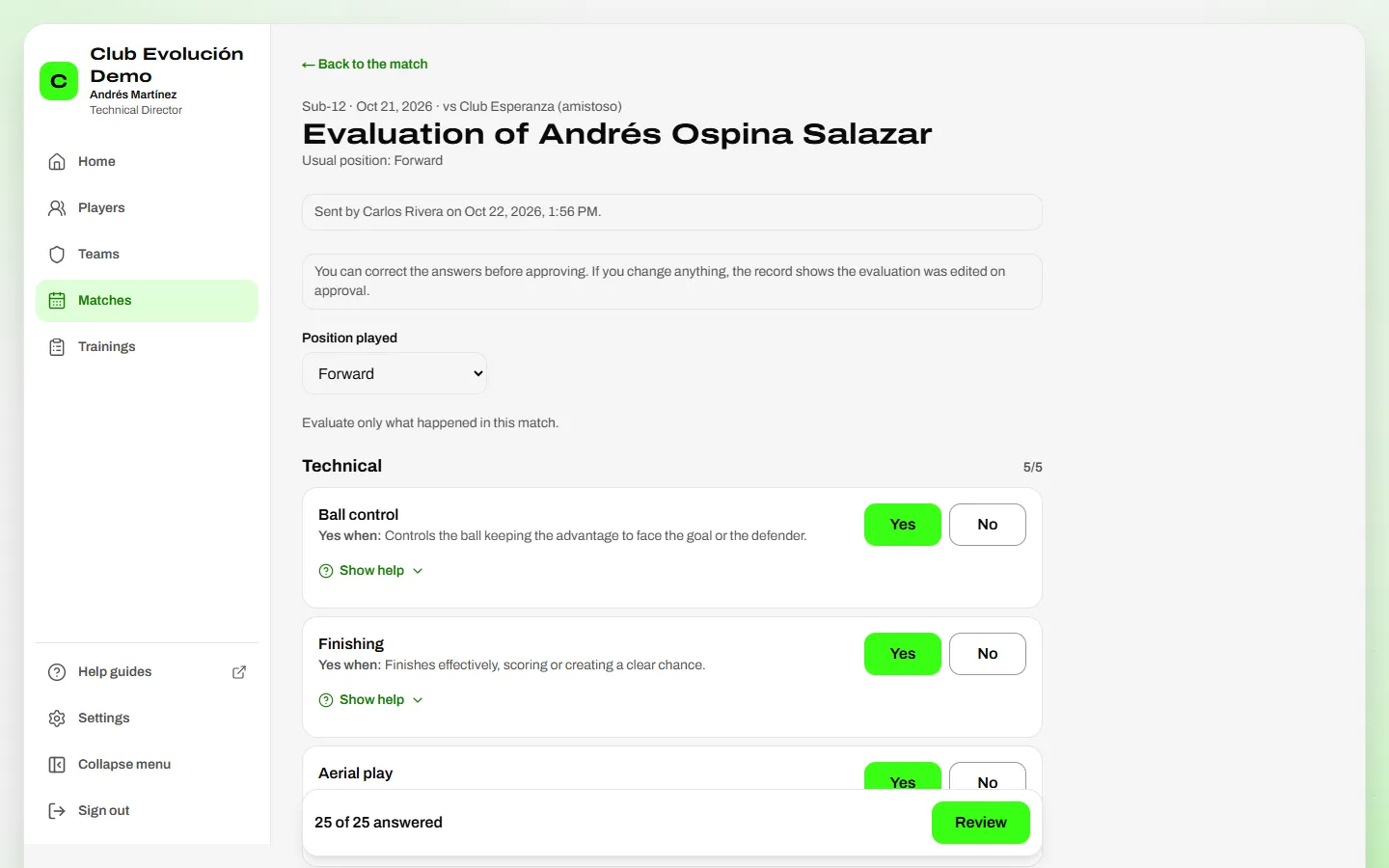
- Tap Evaluate (or Continue if you already have a draft).
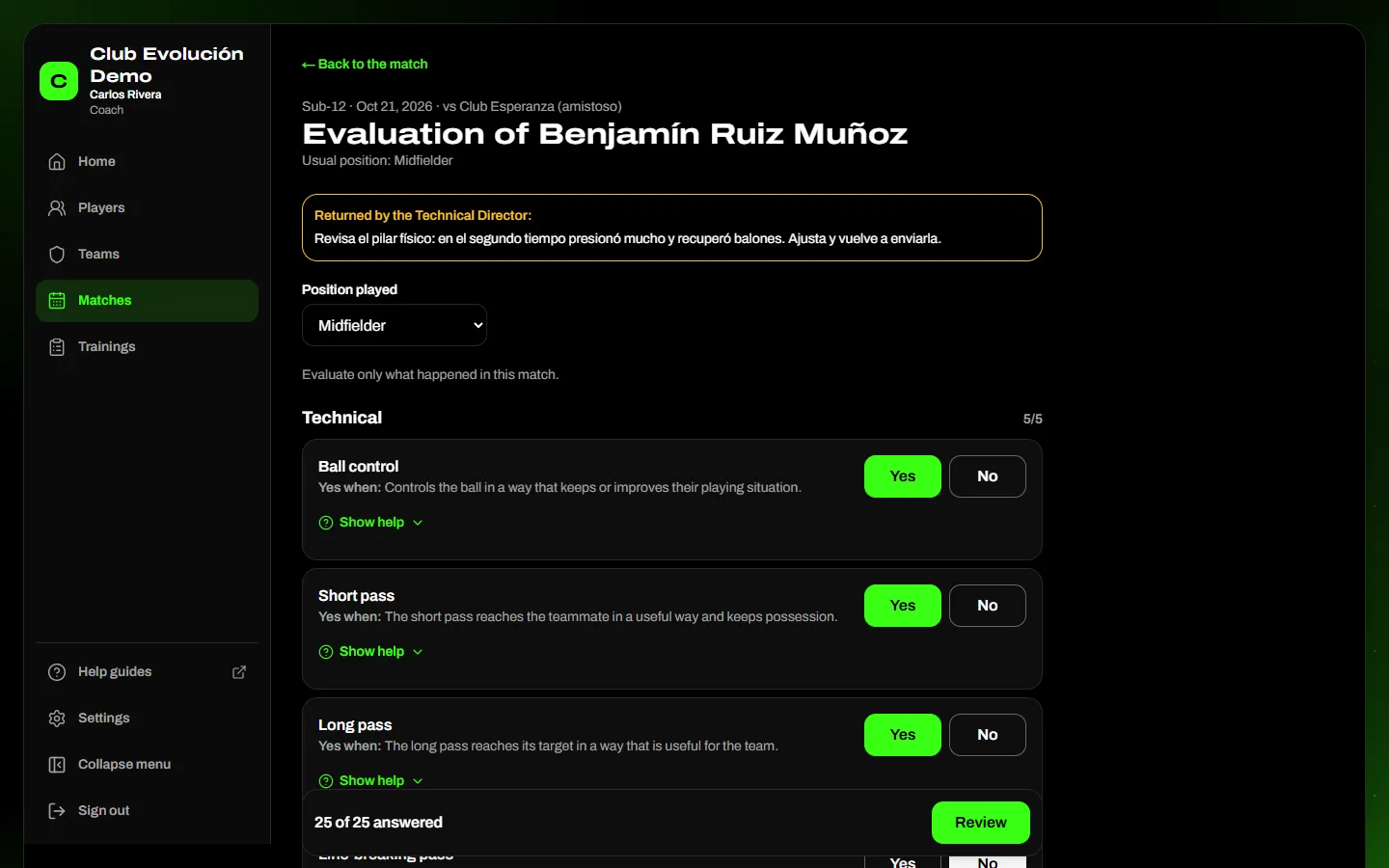
- Check the position played: the form shows only its questions.
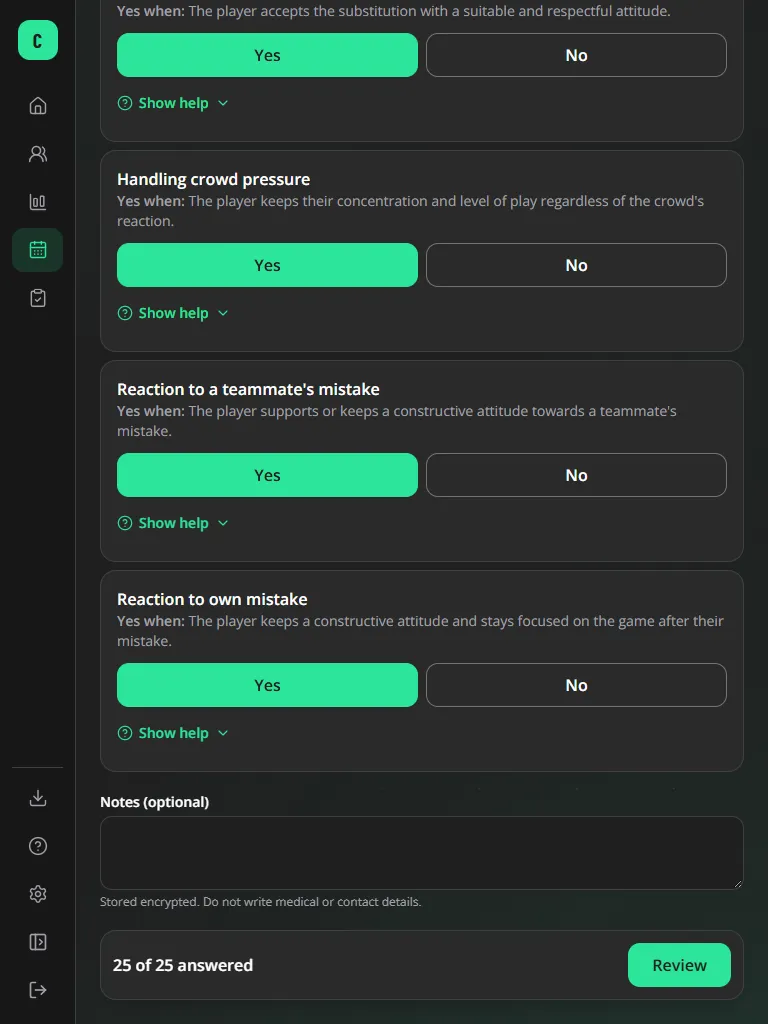
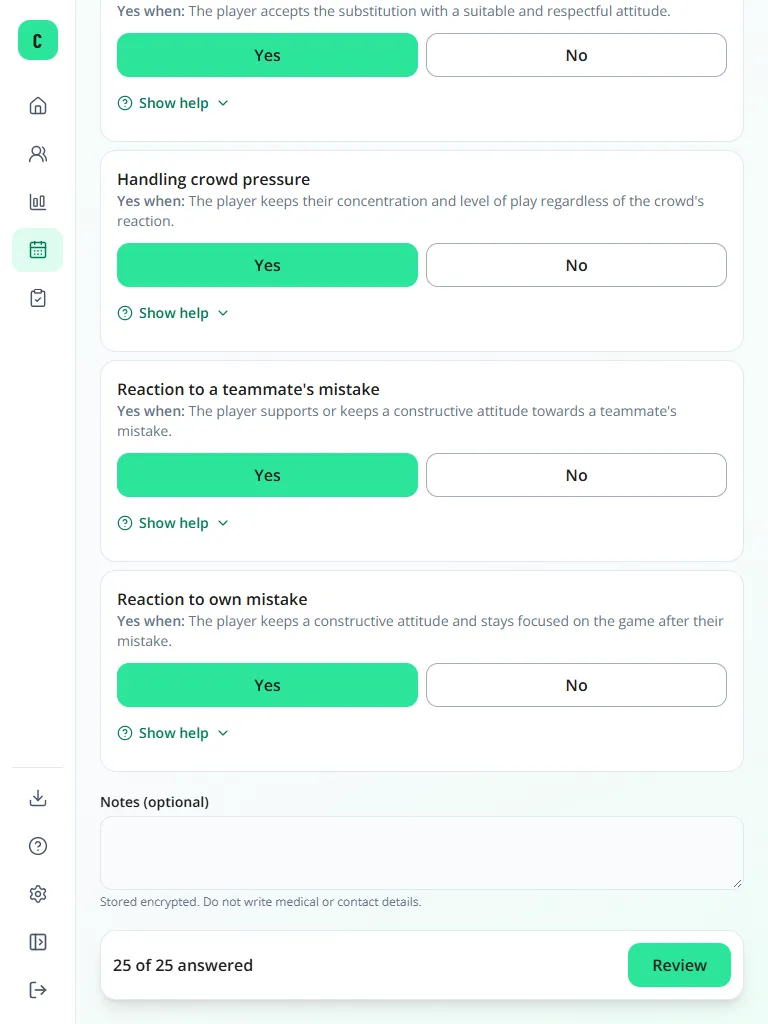
- Answer Yes or No to each question. Under each one you see when a "Yes" applies; Show help opens the Manual's full card.
- If you like, write Notes.
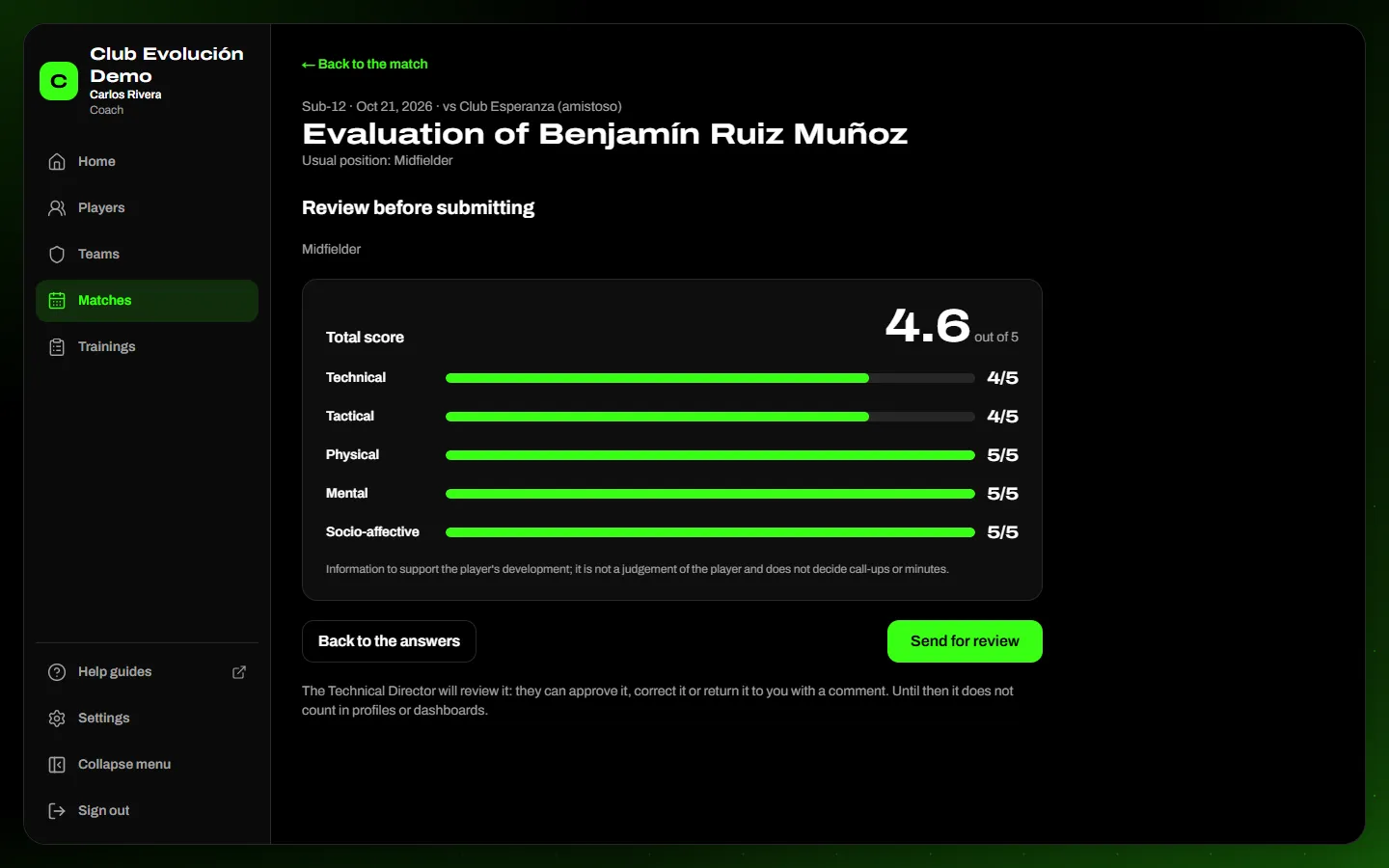
- Tap Review, check the score and tap Submit evaluation (as a coach: Send for review).
Tip
The form saves a draft automatically: if the connection drops or you close the page, your answers are there when you come back.
Important
Your draft is private, but others see Draft in progress — [your name] so two people don't evaluate the same player at once. If someone else submits first, your draft is discarded.
If you change the position played, the 10 technical and tactical answers are cleared (the 15 shared ones are kept).
As a coach: the evaluation goes for review. At the end of the form you tap Send for review. The evaluation is locked and shows as In review: it does not count in profiles or dashboards yet.

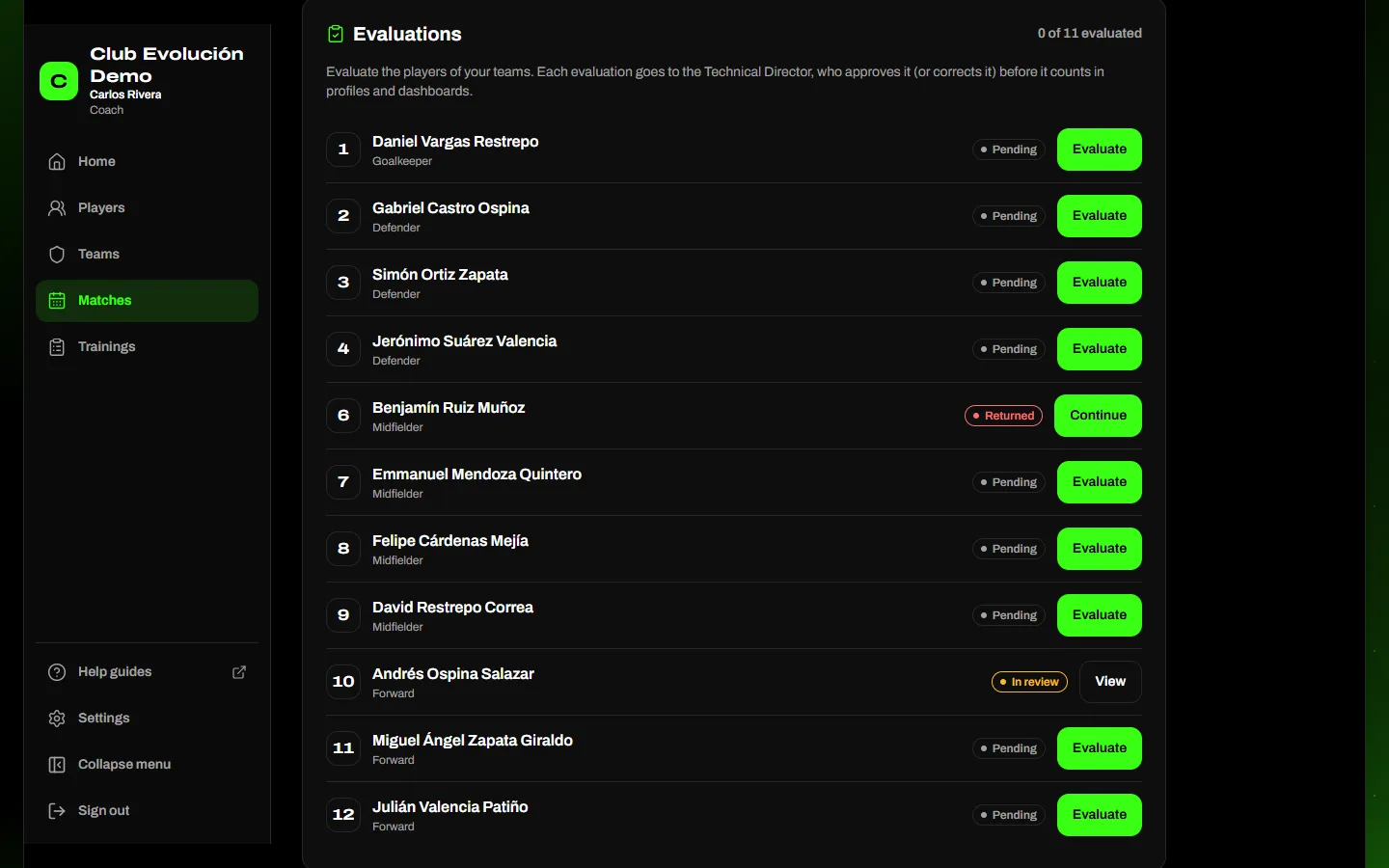
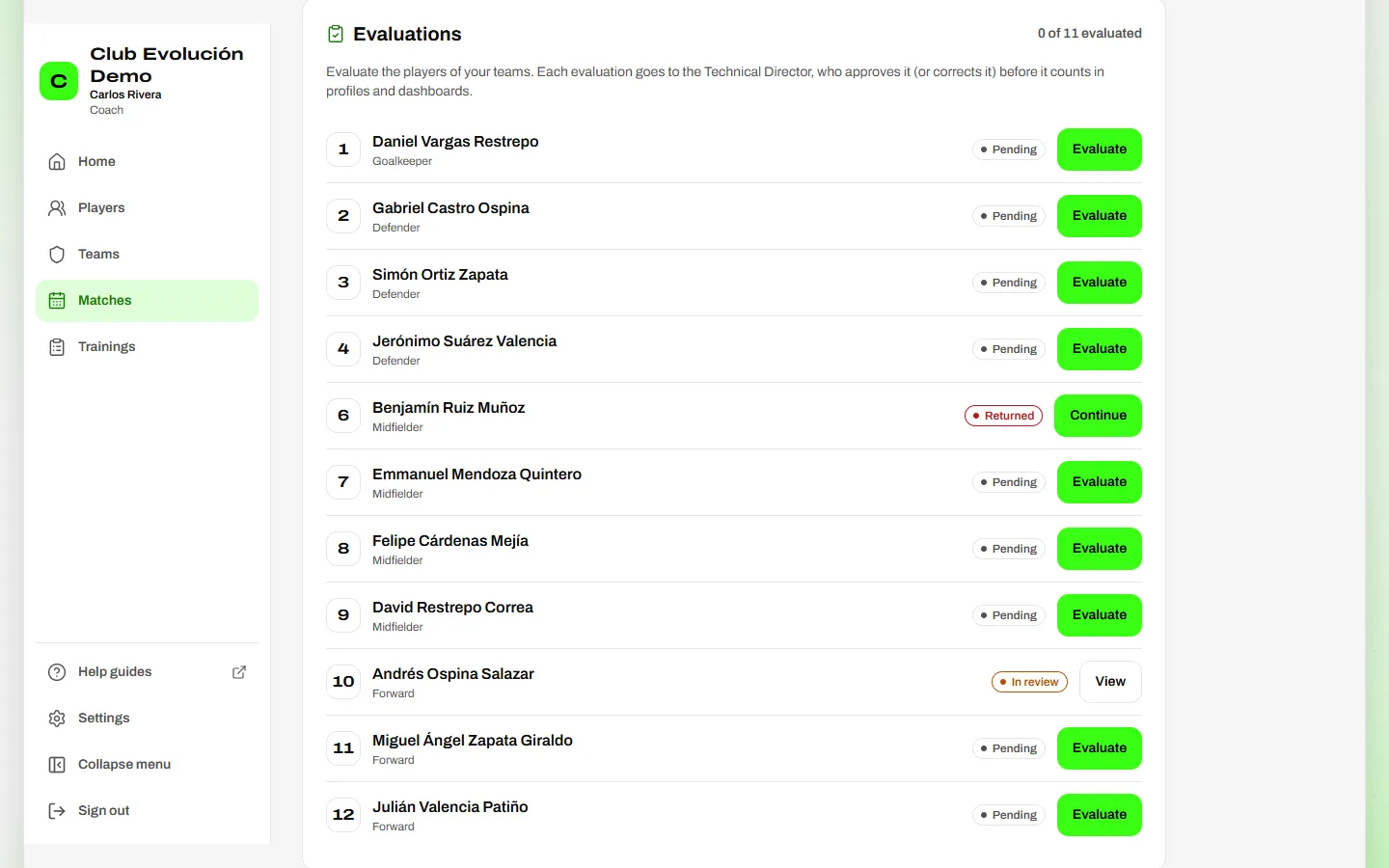
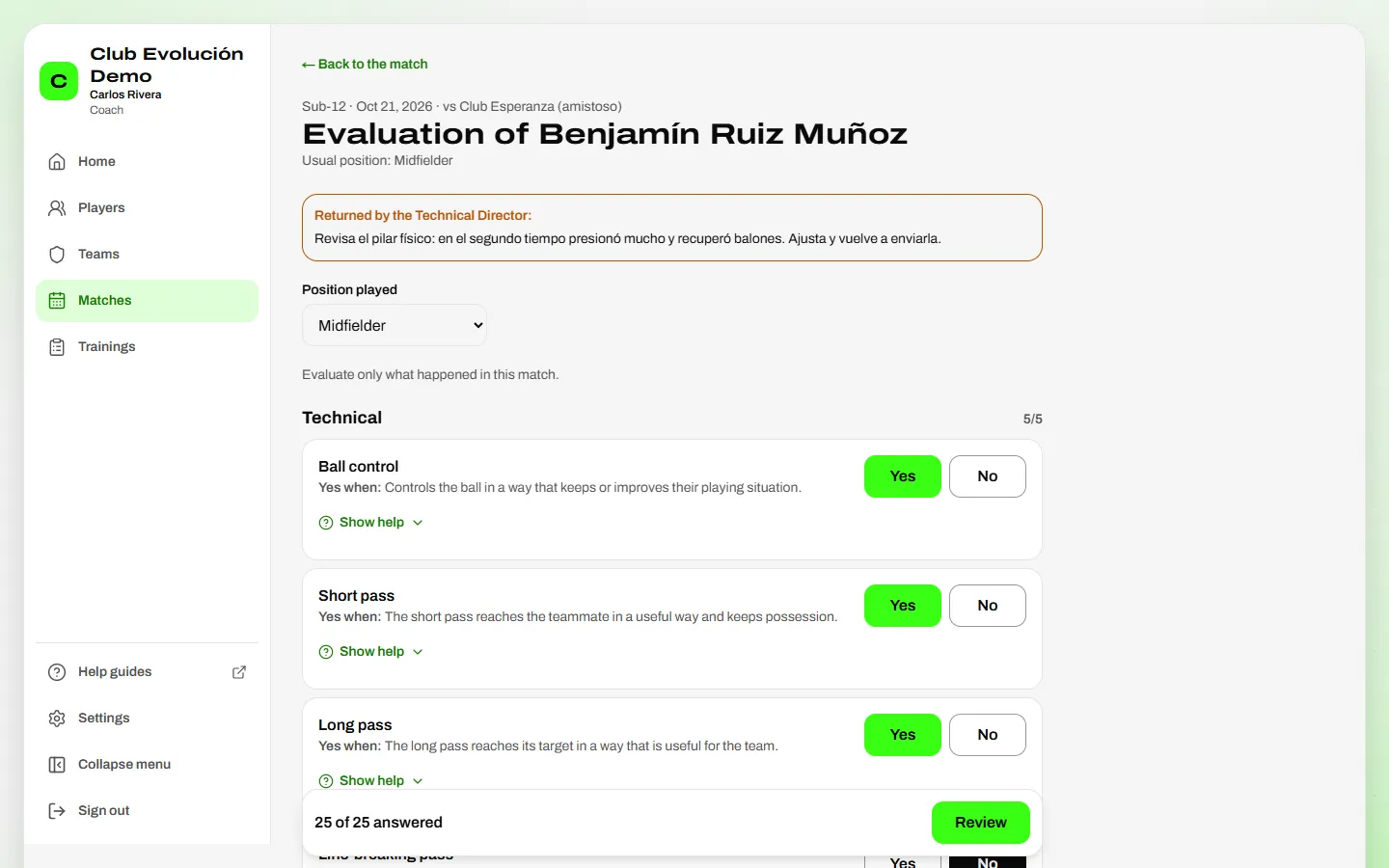
If the Technical Director returns it, it shows as Returned. Tap Continue: their comment is at the top. Correct what is needed and send it again.
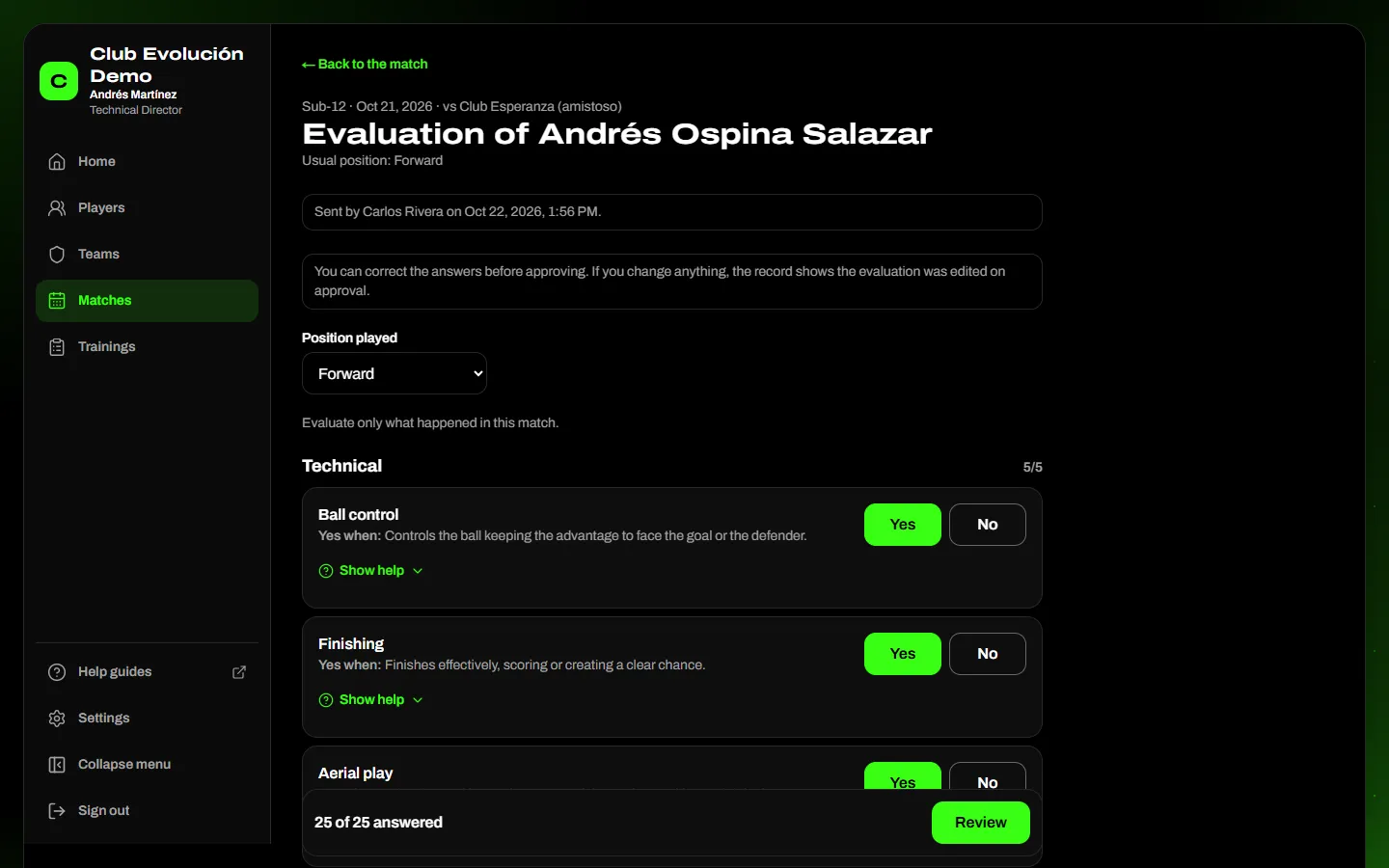
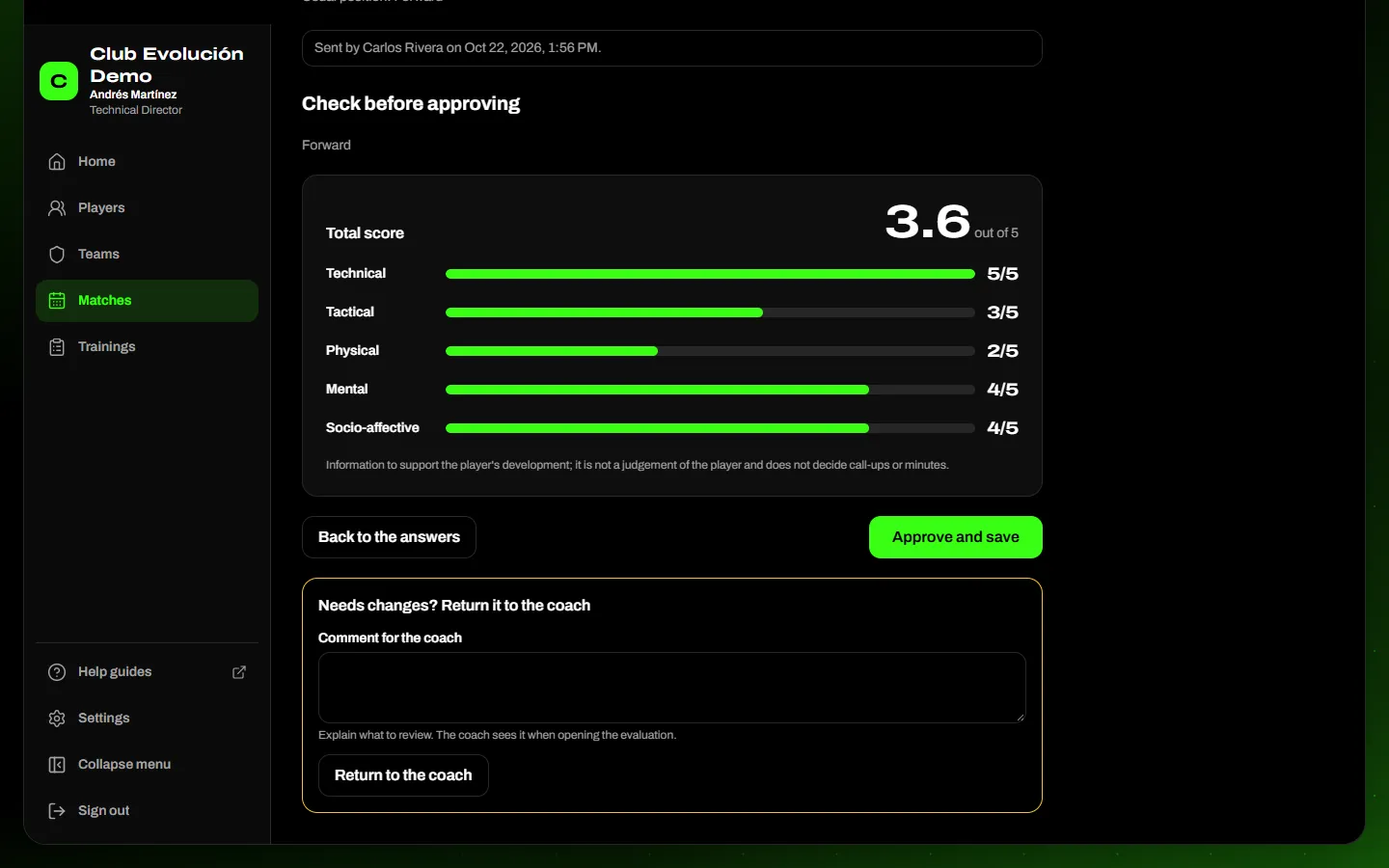
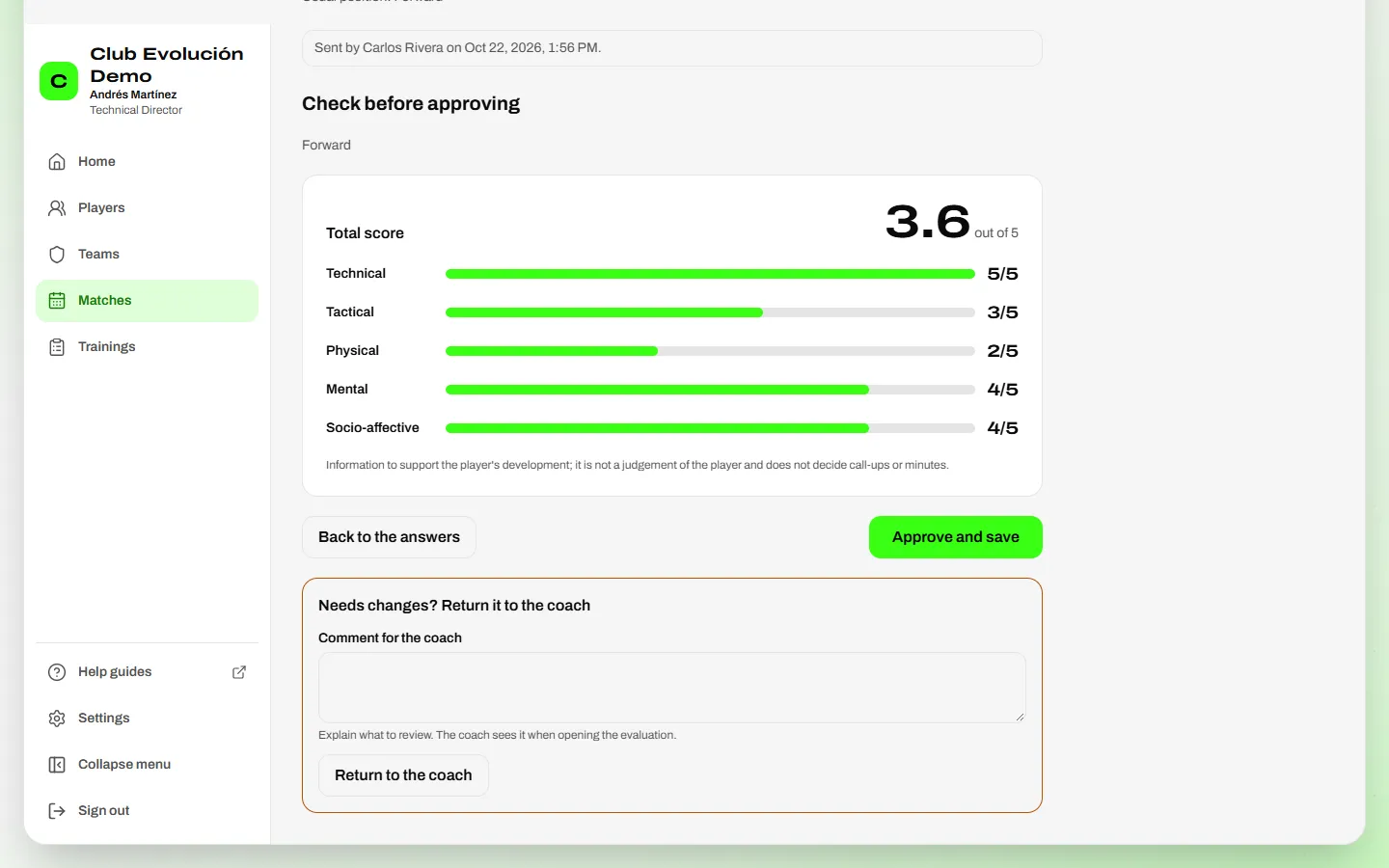
As Technical Director or Administrator: approve or return. Coaches' evaluations show as To approve on the match and on Home. Tap Review: you see the answers the coach sent and can correct them. Then tap Review and choose:
- Approve and save: the evaluation is saved and counts from then on. The record shows who evaluated, who approved and whether you corrected it.
- Return to the coach: write a comment saying what to review; the coach sees it when opening the evaluation.
Important
A coach's evaluation does not count in profiles, dashboards or the assistant until it is approved. Corrections of a saved evaluation are made by the Technical Director or the Administrator (lesson 20).
Recap
- Match → Evaluations → Evaluate
- Yes or No per question, with the Manual's help
- Automatic draft; Review → Submit evaluation
- Coaches: Send for review; the Technical Director approves or returns
To unmark the lesson, select the button again.
Questions? Visit our support portal: support.proevolutionlab.com (opens in a new tab)