


Club settings
What you'll learn
- How to change the club's name
- The club's security rules
- The squad and evaluation rules
In Settings → Club → Club settings & branding you'll find the rules that apply to the whole club:
- Club identity → Club name: if the club changes its name, type it here and tap Save name. The new name shows straight away in the menu, on every screen and on printed documents for every user; players, matches and evaluations don't change. The club's identifier doesn't change.
- Club branding: the logo (tap Upload image: PNG, JPG or WebP, up to 5 MB; it replaces the club's initial in the menu and on the printed card) and the accent colour: choose Emerald (the default), Turquoise, Blue or Amber, or Custom to pick your club's colour or type its code (for example, #14E2E6). The preview shows how it will look; tap Save colour. The platform adjusts the shades of buttons, text and links by itself so everything reads well in light and dark mode.
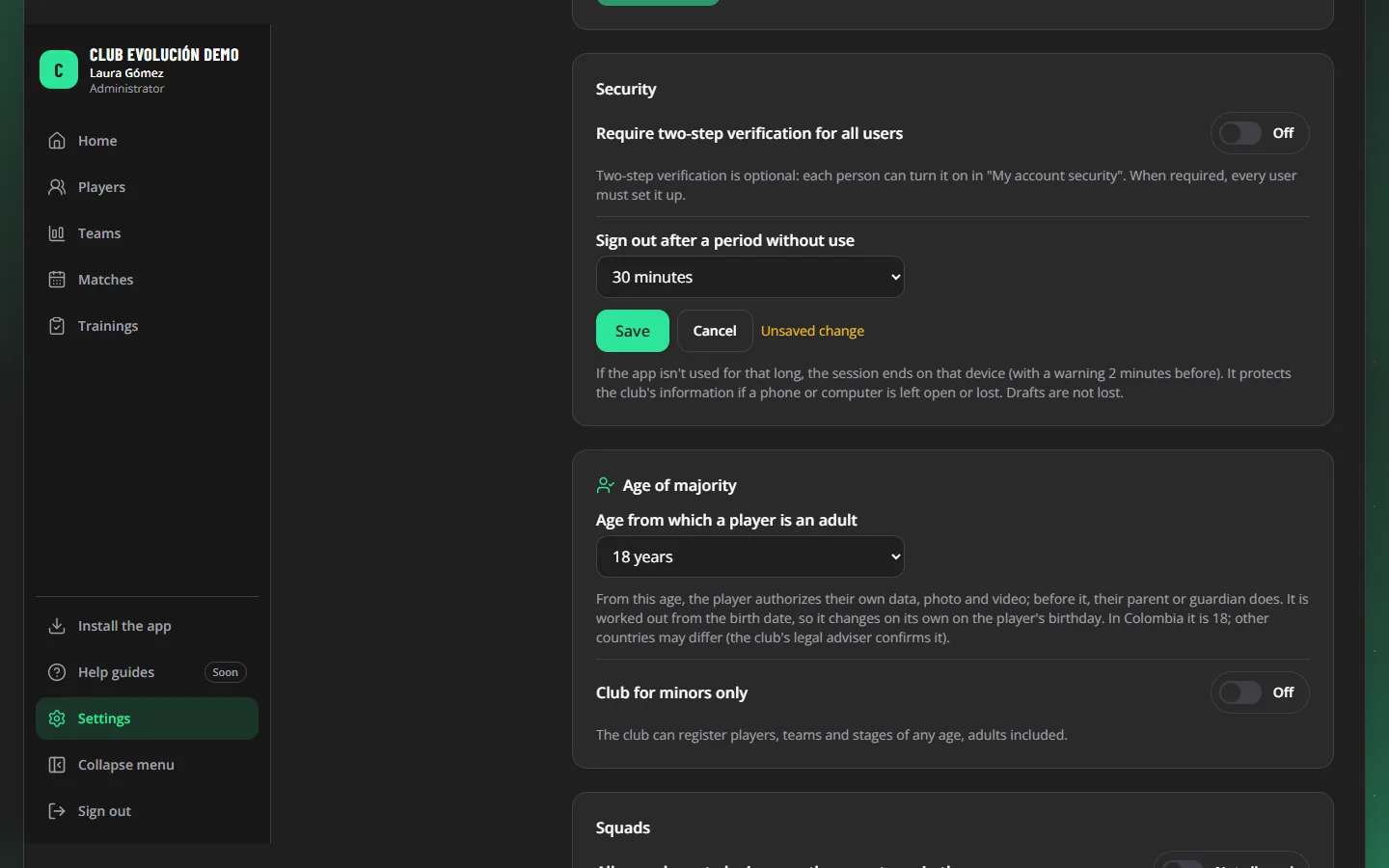
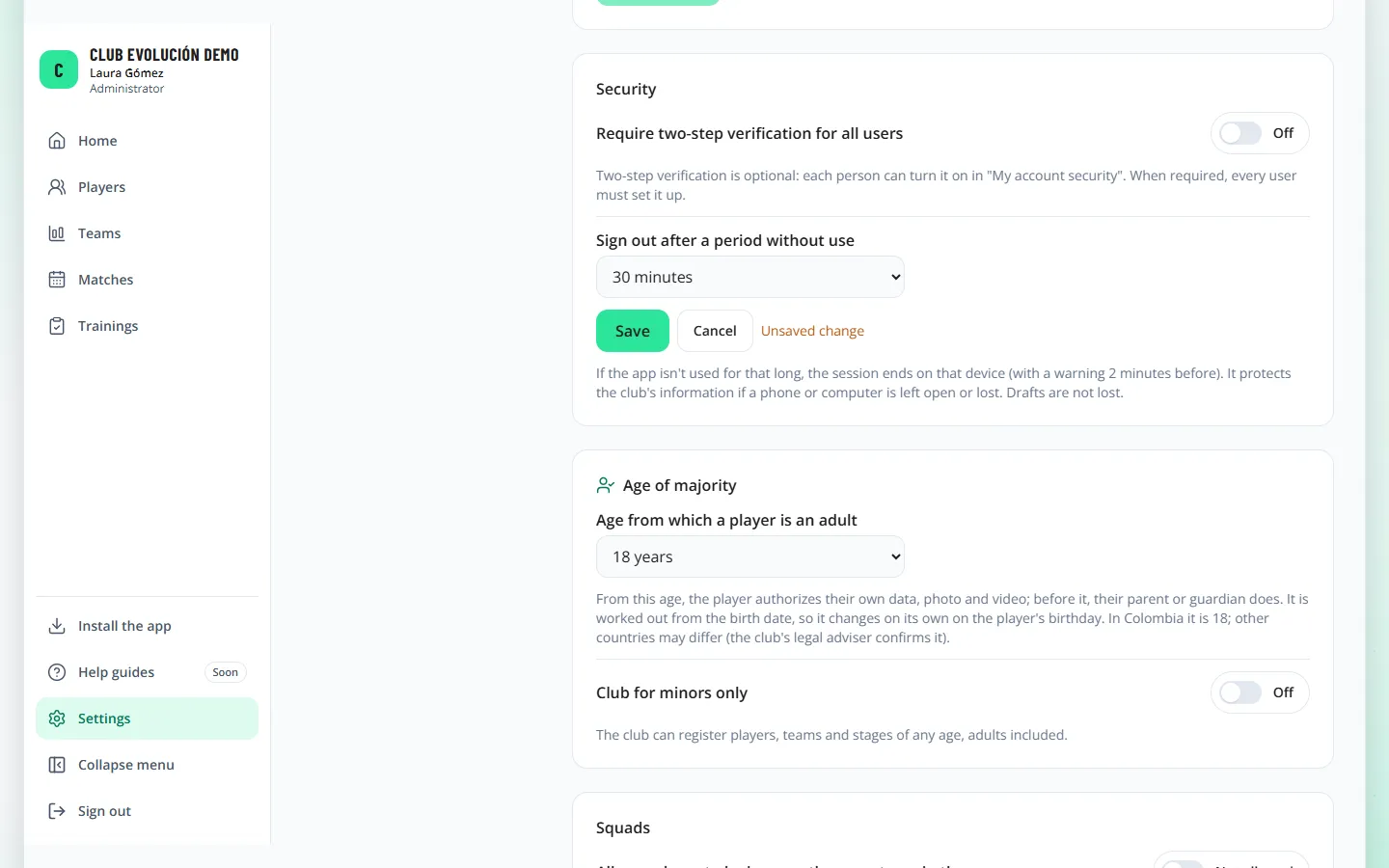
- Require two-step verification for all users: once on, everyone must set it up to keep using the platform.
- Sign out after a period without use: 30 minutes, 1 hour (recommended), 2 or 4 hours. Choose the time, tap Save and confirm.
- Age of majority: from what age a player is an adult in your club (18 by default; 19, 20 or 21 depending on the country). From that age the player authorizes their own data, photo and video; before it, their parent or guardian does. It is worked out from the birth date, so it changes on its own on the player's birthday.
- Club for minors only: turn it on if your club works with minors only. While it is on, adult players and teams or stages for adults cannot be registered (based on the club's age of majority). It can only be turned on when the club has no active adult players or adult teams; registered players who come of age are kept.
- Club language: Spanish or English. Club members who haven't chosen their language in "Appearance" use it from their next sign-in; anyone who chooses their own language keeps it.
- Squads: whether a player may be in more than one team in the same season (by default, no).
- Evaluations: which coaches may evaluate is chosen one by one in Users (lesson 9); their evaluations are approved by the Technical Director or the Administrator before they count.
Recap
- The club's rules are in "Club settings & branding"
- The club's name is changed there too, under "Club identity"
- Security: two-step for everyone and the inactivity time
- Squads and evaluations: the strictest option by default
To unmark the lesson, select the button again.
Questions? Visit our support portal: support.proevolutionlab.com (opens in a new tab)