


Teams
What you'll learn
- How to create and edit a team
- When to archive and when to delete
- Go to Settings → Club → Teams.
- In New team enter the name (for example, U-12 A), the category and, if you like, the age range.
- Tap Create team. To change it later, use Edit on its row.

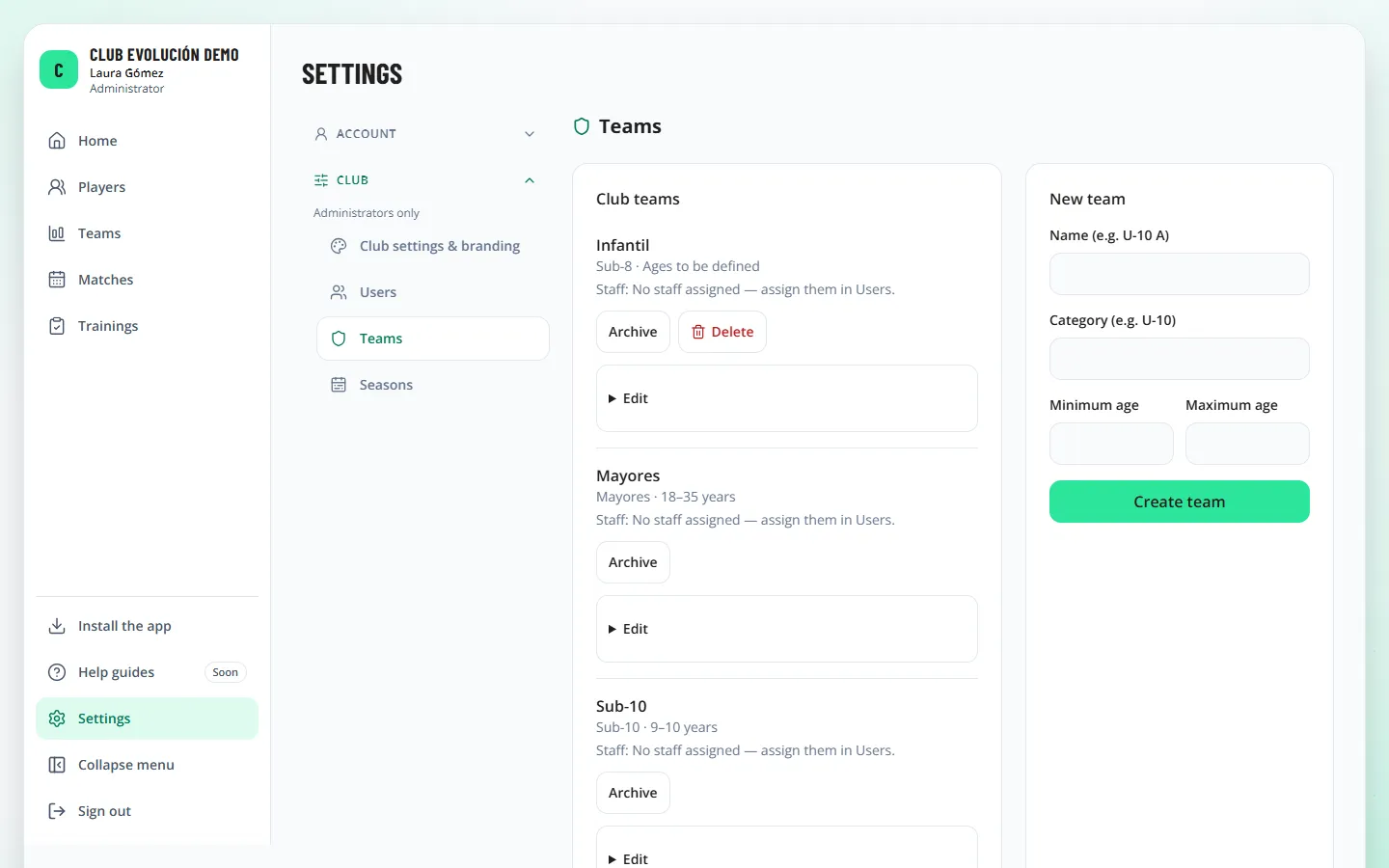
Archiving a team hides it from new matches and squads but keeps all its history; Reactivate brings it back.
Delete only appears on a team with no history (it never had players, matches, trainings or evaluations), for example one created by mistake.
Depending on your role
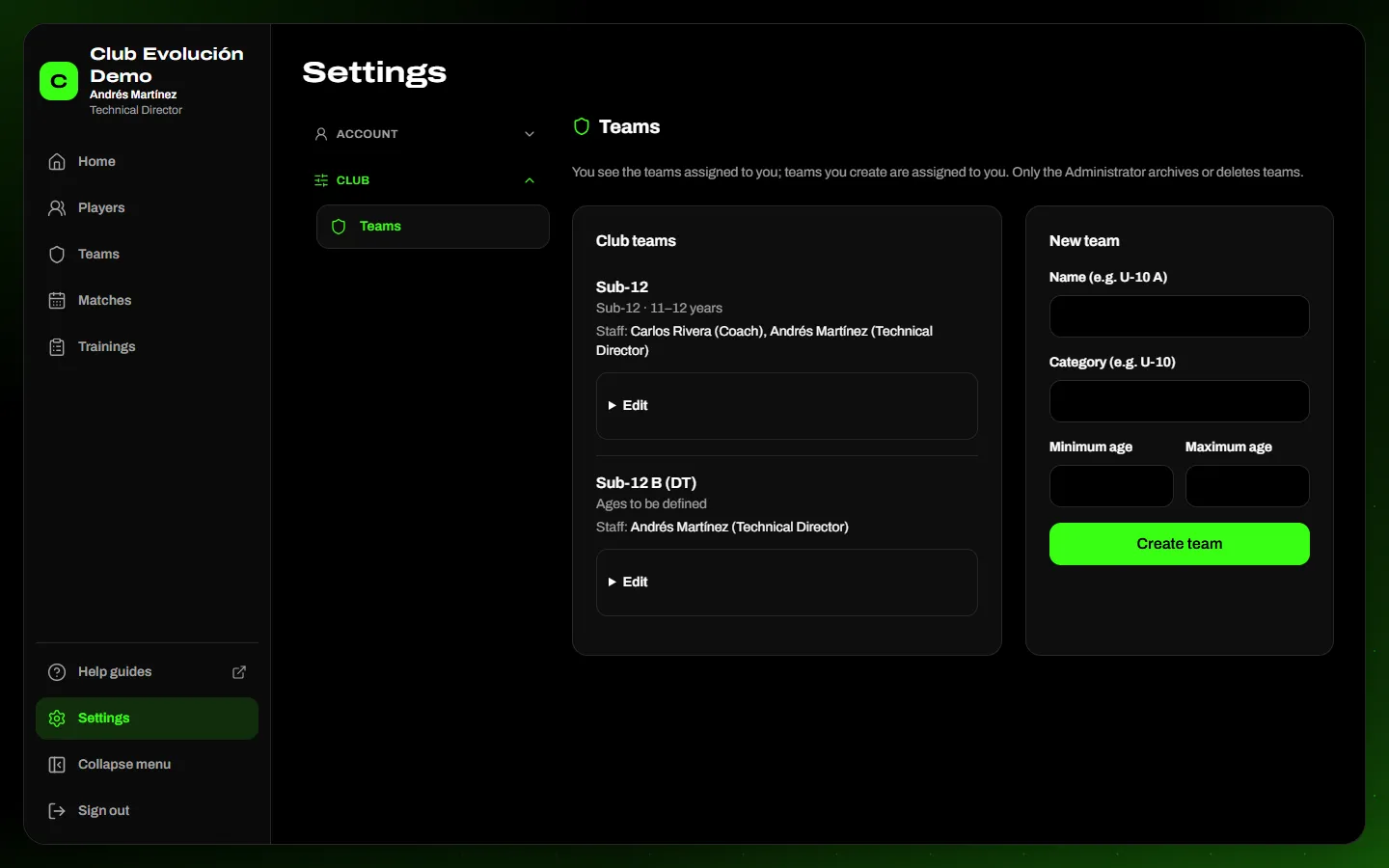
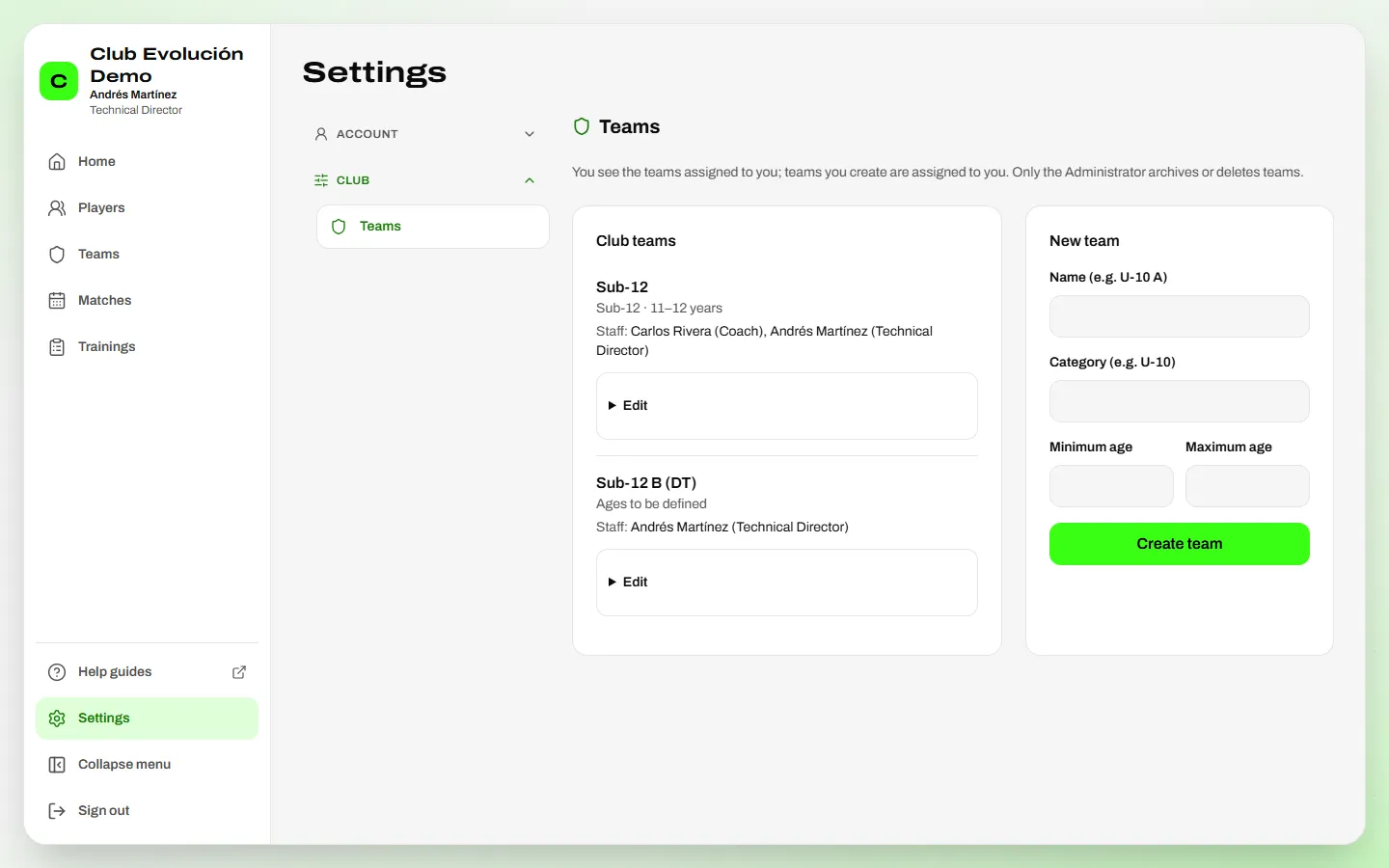
Archiving and deleting teams is for the Administrator only. The admin assistant creates and edits every team. The Technical Director sees only their teams in Settings → Club → Teams: they edit them and can create new ones, which are assigned to them.
Tip
Each team's coaching staff is assigned from Users (lesson 9).
Recap
- Create teams in Settings → Club → Teams
- Archiving keeps the history; it can be reactivated
- Delete only exists for teams with no history
To unmark the lesson, select the button again.
Questions? Visit our support portal: support.proevolutionlab.com (opens in a new tab)