


Install the app on your phone, tablet or computer
What you'll learn
- How to install it on Android, iPhone, iPad and computer
- What changes once it is installed
ProEvolution Lab installs like any other app, without app stores and always up to date.
Android and computer (Chrome or Edge):
- Sign in and open the menu.
- Tap Install the app and confirm with Install.
iPhone and iPad (Safari):
- Open the platform in Safari and sign in.
- Open the menu (☰) and tap Install the app: a short guide appears.
- Tap Safari's Share button (the square with the arrow pointing up).
- Choose Add to Home Screen and tap Add.
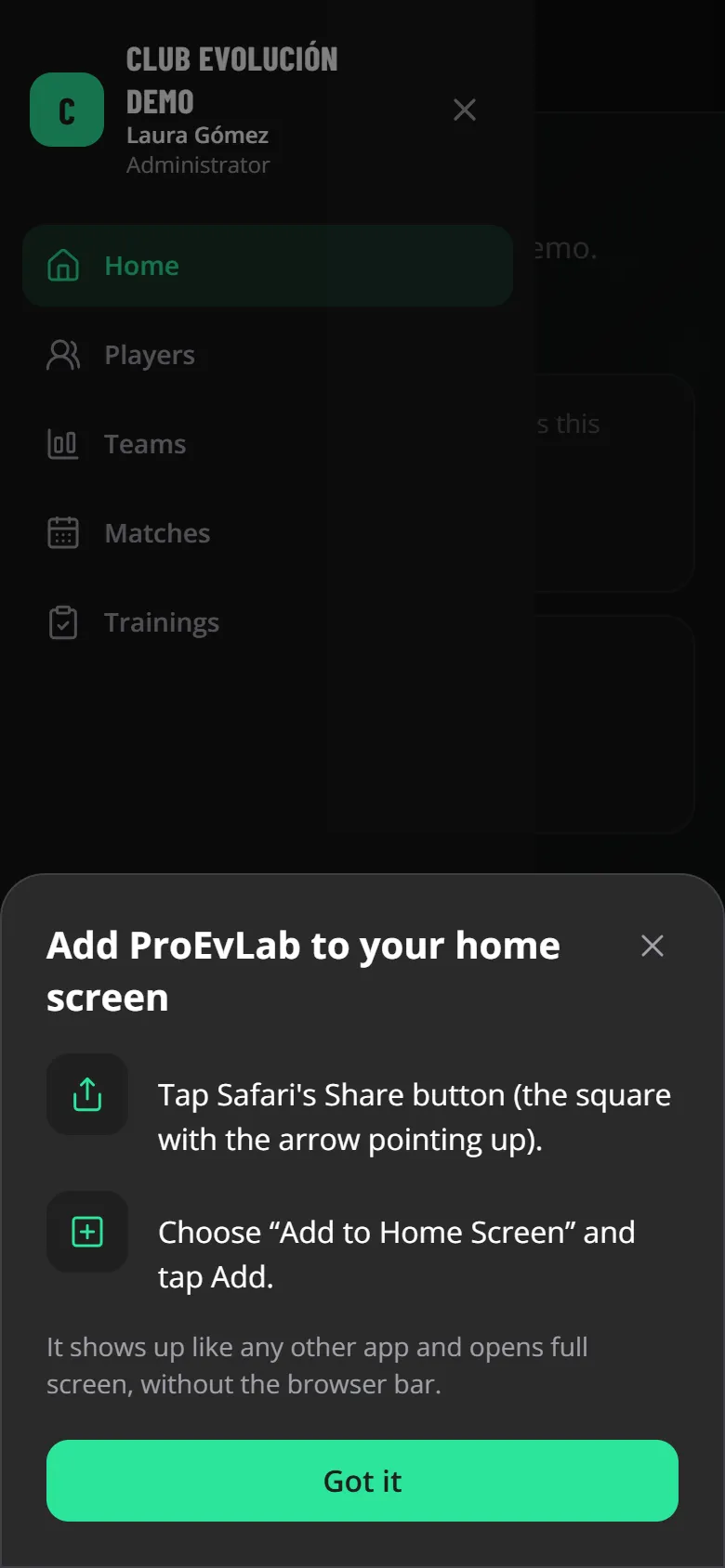
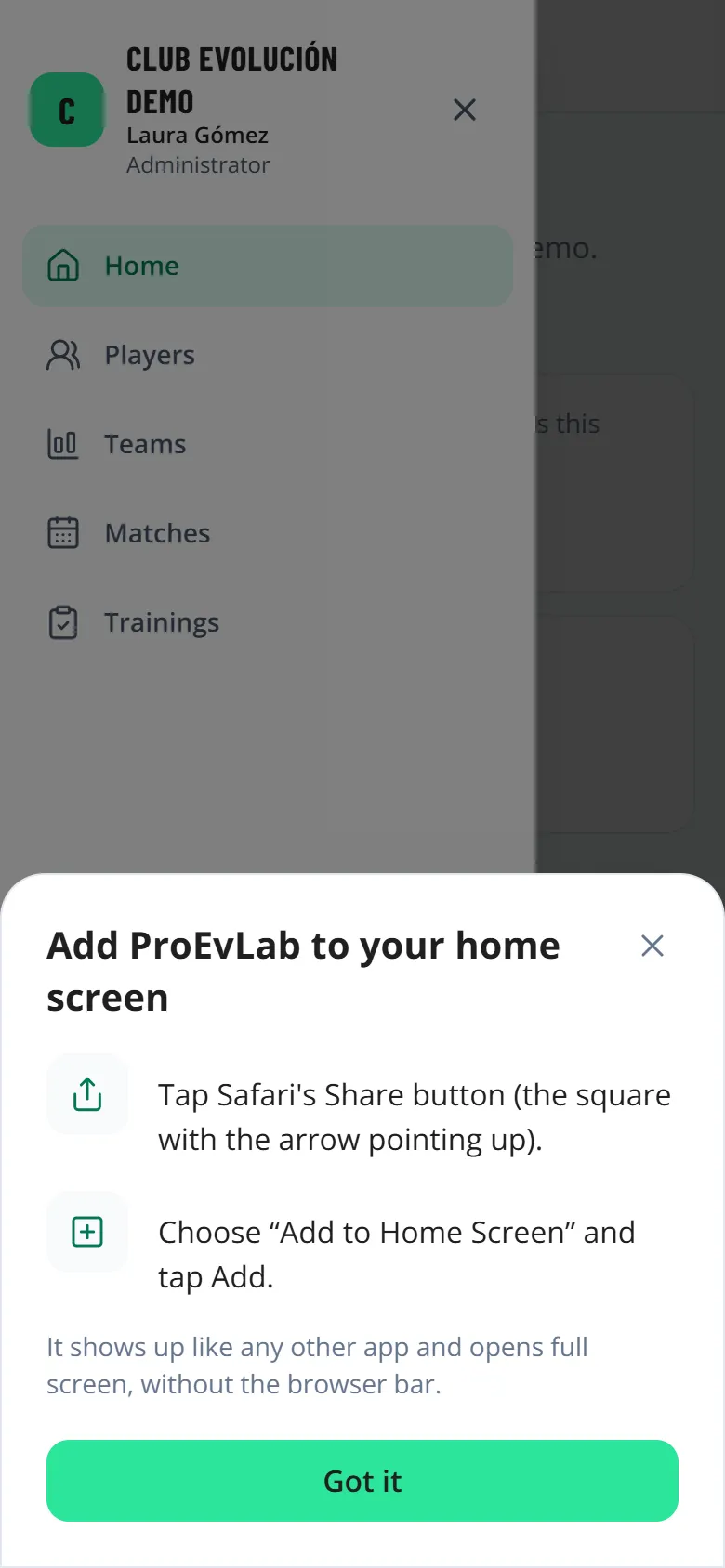
Once installed it has its own icon, opens full screen and goes straight into the platform.
Tip
On iPhone and iPad, the installed app asks you to sign in once more the first time you open it.
Need help?
Don't see Install the app? It is already installed, or your browser cannot install it (use Chrome, Edge or Safari).
Recap
- Install it from the menu: "Install the app"
- On iPhone and iPad: Share → Add to Home Screen
- Installed, it opens full screen with its own icon
To unmark the lesson, select the button again.
Questions? Visit our support portal: support.proevolutionlab.com (opens in a new tab)